Category: Art

  • How does Stable Diffusion XL compare to Midjourney?

    How does Stable Diffusion XL compare to Midjourney?

    Stable Diffusion XL and Midjourney are both excellent modern AI image generators. While Stable Diffusion has the advantage of being released under a FOSS license, Midjourney has historically been one or two steps ahead in terms of overall output image quality. Since the last big release of Stable Diffusion XL however, the gap appears to have narrowed a lot so I decided to do a brief head to head comparison of the two.

    Methodology

    I am picking prompts and results from the Midjourney Community Showcase page. These will have been cherry-picked by their creators to make good use of the strengths of Midjourney. For Stable Diffusion I’m using the latest release of Stable Diffusion XL with the webui setup. I will do my best using the available options to get the best possible results out of Stable Diffusion without any adjustments to the prompt itself. Keep in mind that this may be an uphill battle for stable diffusion and my choice of result may be a matter of personal preference.

    Stable Diffusion XL vs Midjourney comparison

    Prompt: an illustration of a man curly hair dressed in futuristic clothing, in the style of white and gold, hyper-realistic sci-fi, kingcore, rtx on, delicate gold detailing, detailed world-building, photo-realistic

    Both Midjourney and Stable Diffusion XL generated impressive results. Midjourney is maybe a bit more “Sci-Fi”, as requested by the prompt. The last image was generated using CFG Scale 1. A lower CFG scale is supposed to cause the model to interpret the prompt more loosely, causing more creative results. In this instance, the result still adheres quite closely to the prompt, albeit with some changes in perspective.

    Prompt: john wick guest stars on the animatrix

    For this prompt, Stable Diffusion XL decided to go for higher visual complextiy than Midjourney. This means there is more detail in the end results, but also more glitchiness. Setting CFG Scale to 1 changes the art style completely. People who know about John Wick please tell me if the last picture contains any John Wick references.

    Prompt: artefacts, double exposure, beautiful women reflecting on store window, outside, bright morning sun, high contrast, analog, 35mm, Leica

    In this very complex and challenging prompt, both models struggle. Reflections and refractions are apparently very difficult to get right. Midjourney appears to ignore parts of the prompt to get a somewhat plausible image. On the other hand, Stable Diffusion XL tries to incorporate all aspects of the prompt and then fails harder. In either case, the reflections are highly implausible.

    Prompt: a giraffe parked inside a trailer, in the style of stop-motion animation, vintage-inspired designs, animated gifs, kestutis kasparavicius

    For this prompt, Midjourney basically ignored parts of the prompt again. Looking at some of the works of Kestutis Kasparavicius, clearly only Stable Diffusion XL derived inspiration from it. Midjourney didn’t even put a giraffe into the end result. On the other hand, Stable Diffusion XL is more glitchy, especially with CFG Scale 1. That may be caused by adhering to the actual prompt, even though there isn’t a lot of source material to draw from. In my opinion, this is the better approach as opposed to simply ignoring large parts of the prompt.

    Conclusion

    It’s hard to conclusively say that one model results in significantly better images than the other from this small test. One observation is however, that Stable Diffusion tends to try and interpret the prompt fully even if that causes glitches. Midjourney is (ironically?) more stable, with fewer obvious glitches, but it appears to avoid problematic components of the prompts. That may make Midjourney a bit easier to use, but also less flexible, though more testing is needed. Ultimately, while they both have their strengths, both models are more or less on the same level of quality at this point in time. It will be exciting to observe future developments for both.

  • Getting started with local Stable Diffusion XL AI

    Getting started with local Stable Diffusion XL AI

    Current image generation AI is amazing, and Stable Diffusion is one of the best models available. It is capable of generating excellent quality images and because it is open source, you can run it locally which means there are no privacy concerns or additional costs involved with using it. Just a few days ago the newest and most powerful version yet, Stable Diffusion XL 1.0 was released which works better at higher resolutions of 768×768 to 1024×1024. With some extra steps you can set it up and use it today with stable-diffusion-webui, an easy to use tool you can run locally and use in your browser to play around with various models. This is how to set it up in just 10 minutes:

    stable-diffusion-webui setup

    First, if you have an Nvidia GPU, make sure you have the latest proprietary driver. You need it in order to make use of CUDA for acceleration of Stable Diffusion.

    Installing python3

    First you will need to install python3 if you don’t already have it. I won’t get into too much detail on this because there are thousands of guides for this, but the easiest way is to use a package manager:

    For Windows 11: Run winget install -e --id Python.Python.3.11 in the Windows terminal

    For Arch Linux: Run sudo pacman -S python

    For Ubuntu: It should already be installed on modern versions

    Running python -V should now yield a 3.x version number.

    Install stable-diffusion-webui

    Next we are going to download and install stable-diffusion-webui which we are later going to use to interact with Stable Diffusion. As of now support for Stable Diffusion XL has not yet been merged into the master branch so we are going to use the dev branch.

    If you don’t have git, you can download the current dev state here: stable-diffusion-webui
    If you do have git however, I recommend that you properly clone the repository. This way you can later update more easily:
    git clone https://github.com/AUTOMATIC1111/stable-diffusion-webui.git
    git checkout dev

    Download Stable Diffusion XL models

    stable-diffusion-webui comes with Stable Diffusion 1.5. If you want to use the improved Stable Diffusion XL model, you will need to download it separately and place it in the directory stable-diffusion-webui/models/Stable-diffusion
    You can get the base model from here: Base Model
    And the optional refiner model from here: Refiner Model

    Running the webui and usage

    Now you can run the webui. Simple start webui.sh if you are on Linux or webui.bat if you are on Windows. It may download and install some dependencies on your first launch, but when it’s done, point your web browser to http://localhost:7860/ and you should see the webui.

    At the top left, make sure you select the XL base model. If you are using Stable Diffusion XL, make sure your resolution is between 768×768 and 1024×1024 or quality will be poor. Higher resolutions will take longer to generate but look sharper. You can also play with the number of sampling steps and sampling method which can influence the final result significantly. Generally, 20-60 steps are good values and the sampler “DPM++ SDE Karras” should yield very good result. You can learn more in this excellent comparison: https://stable-diffusion-art.com/samplers/#Evaluating_samplers
    You can move the CFG slider to influence how creative the model should interpret the prompt. A lower value may lead to less literal, more creative results.
    Next, just enter a prompt and hit generate. If you encounter any issues, make sure to read the next section.

    Finally, if you have installed the refiner model, you can send your generated image to the img2img section. There you can switch to the refiner model to apply modifications and tweaks to the original image. For example, you can change the subject or art style after you are happy with the basic composition.

    Optimizing performance and troubleshooting

    Here are some tips for improving performance:
    If you are on Linux, installing TCMalloc may improve generation speed, for example: sudo apt install --no-install-recommends google-perftools
    If you are using CUDA, running with xformers should speed things up further: webui.sh –xformers
    If you are running low on VRAM and experiencing crashes, try this option to save memory at the cost of speed: webui.sh --medvram
    And finally, if you are generating black images, try this option: webui.sh --no-half-vae

    Examples

    Here are some cool images I was able to generate using Stable Diffusion XL:

    Ancient Rome
    Cyberpunk outfit
    A weird situation happening in public
  • Migrating from Adobe CC to Open Source Software

    For several years my photo editing workflow went something like this:

    • Take a picture, RAW+JPEG.
    • Plug SD card into my PC.
    • Import it into Lightroom Classic CC, lossless conversion to DNG.
    • Occasionally LR backs up its catalog.
    • Windows File History backs them up to my NAS.
    • A script backs them up to LTO-4 tapes.
    • I’ll browse through my catalog and flag the ones I think are good enough to edit.
    • I apply the LR auto adjustments and tweak them a little to see how far I get.
    • Now I can start cropping, editing, correcting and applying filters with the Nik collection.
    • The finished product is then exported to Google Drive and then shared to to social media.
    • If I’m not home I don’t have a proper workflow, meaning I often create redundant backups or have difficulties finding specific pictures.

    This comes with a few problems:

    • It’s pretty darn complicated. I wish I could cut out a few layers of complexity.
    • I have to use proprietary software that doesn’t run well under Linux, so I can only use this workflow when I’m at home.
    • It costs quite a bit of money. Even with a student discount, LR Classic CC costs at minimum 12€ per month.
    • Lightroom performance is horrible. Lightroom CC is lacking basic features and I don’t want to upload everything to the cloud.
    • I use hardly any Adobe specific features. Automatic lens corrections aren’t that important, I can live without the Nik collection.

    I solved some of my issues with the following workflow:

    • Regardless of whether I’m at home or travelling with my linux laptop, I’m now using Darktable with the “local copies feature” to avoid redundant backups.
    • I’m keeping the “two tier” storage system. All photos in their raw form are at some point imported through darktable into my central NAS, but all finished pictures are stored on my Google Drive. This means I can always access my most important data quickly even if it comes from outside my main workflow (e.g. edited on my phone…).
    • The actual editing can take place in Darktable, RawTherapee, Snapseed or Lightroom Mobile. If I’m on a computer the data will still go through Darktable and then to my NAS and also be exported to Google Drive, otherwise it will directly go to the Drive.
    • I avoid the cost of Adobe products. The initial migration to this new workflow was pretty quick, and now 99% of the time I can use one path for everything.
    • The actual editing results for me are comparable to what I could achieve with Lightroom.
  • Auto Danubia Compact 135mm f/2.8 M42 Lens Review

    Auto Danubia Compact 135mm f/2.8 M42 Lens Review

    Today I’ll take a look at the cheapest 135mm lens I could find: The Auto Danubia Compact 135mm f/2.8. Let’s see if it is worth considering if you are on a budget.

    Build

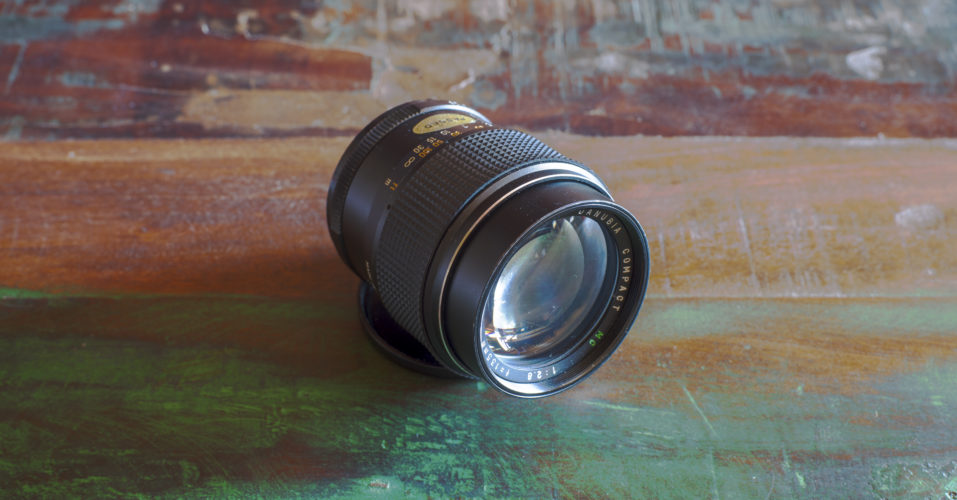
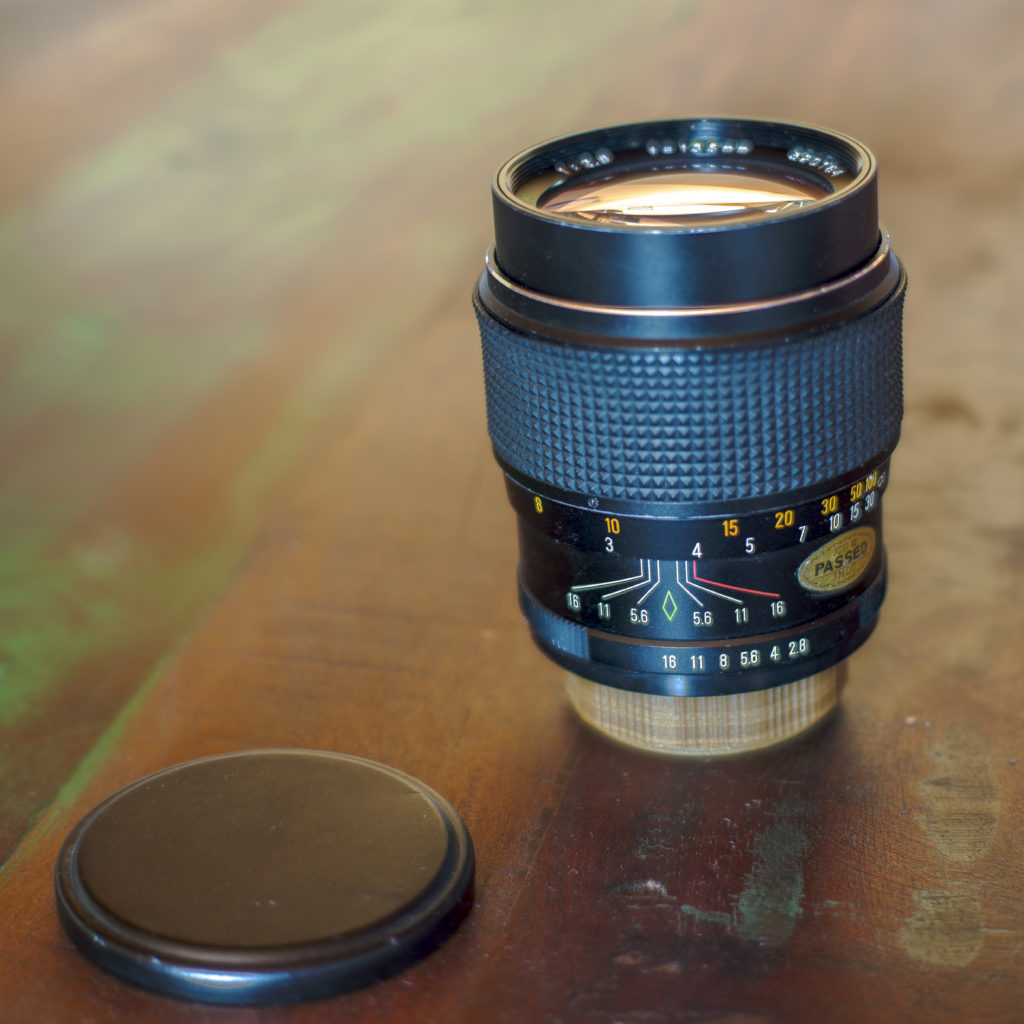
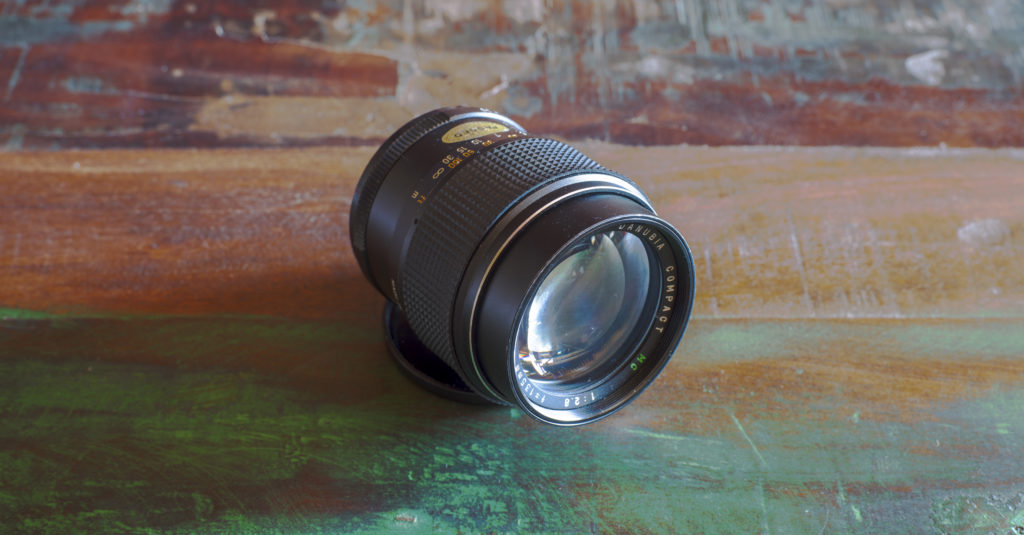
    The lens is made of all metal and glass, except for the rubber focus ring appears to be disconnected from the body. While it fits snugly around the barrel, it can simply be taken off. There is an imprint, that claims that the lens is made in Japan. It is a rather short lens for its focal length. It feels moderate in weight for its size. The glass has a green-shimmering coating.

    My copy came with a metal front cap. It didn’t come with a rear cap, so I 3D-printed one. It has an integrated lens hood which loosely slides in and out when the front cap is removed, but it can be fixed in its extended position by turning it a little.

    The focus ring is smooth and the aperture ring is clicky. Both feel reasonably well.

    My lens has a sticker claiming it was made in 1982. It comes with an M42 screw-mount which you can adapt to most modern systems, as long as you don’t mind fully manual controls.

    Image quality

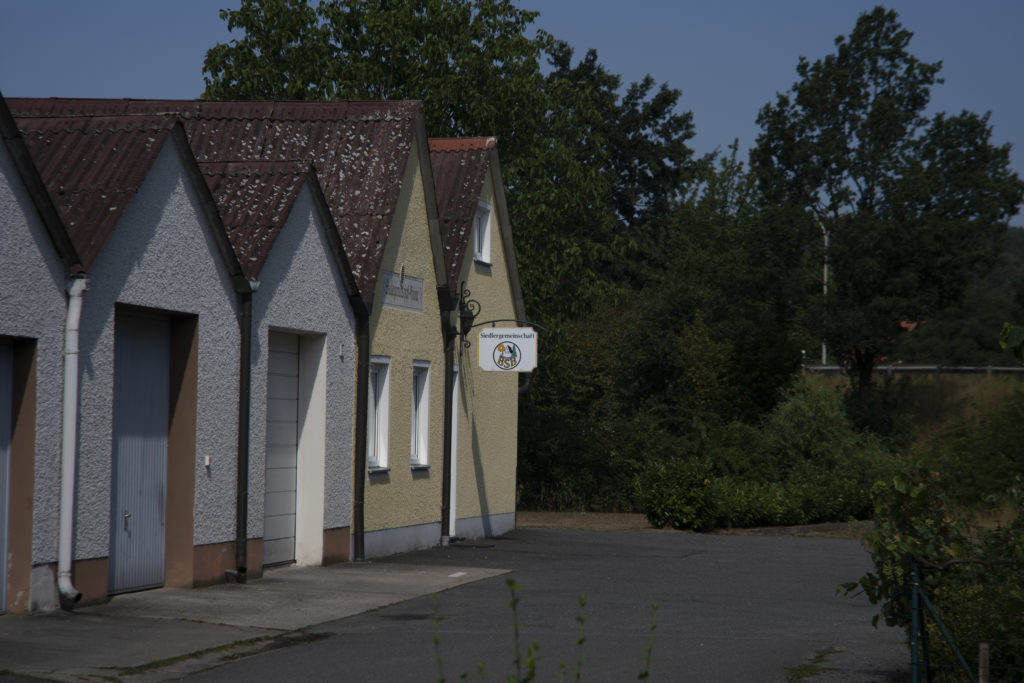
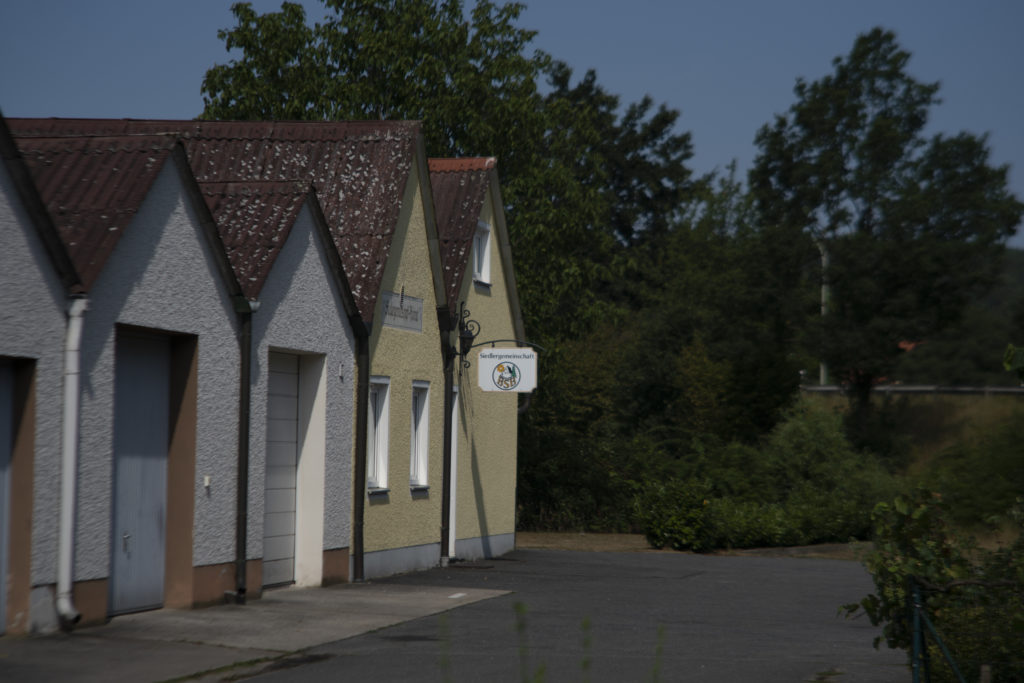
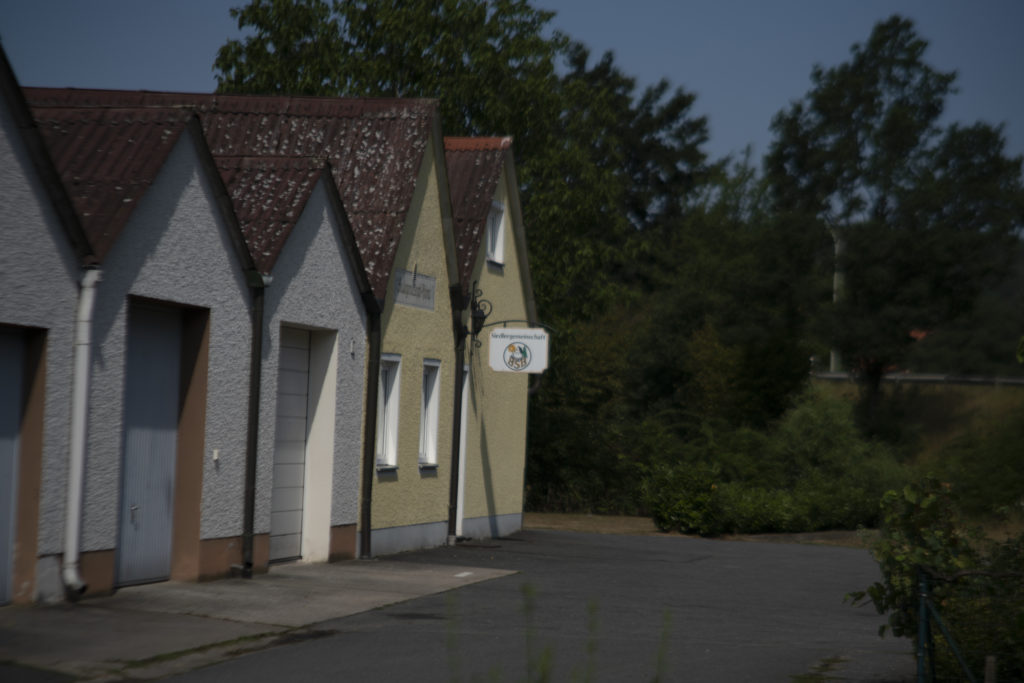
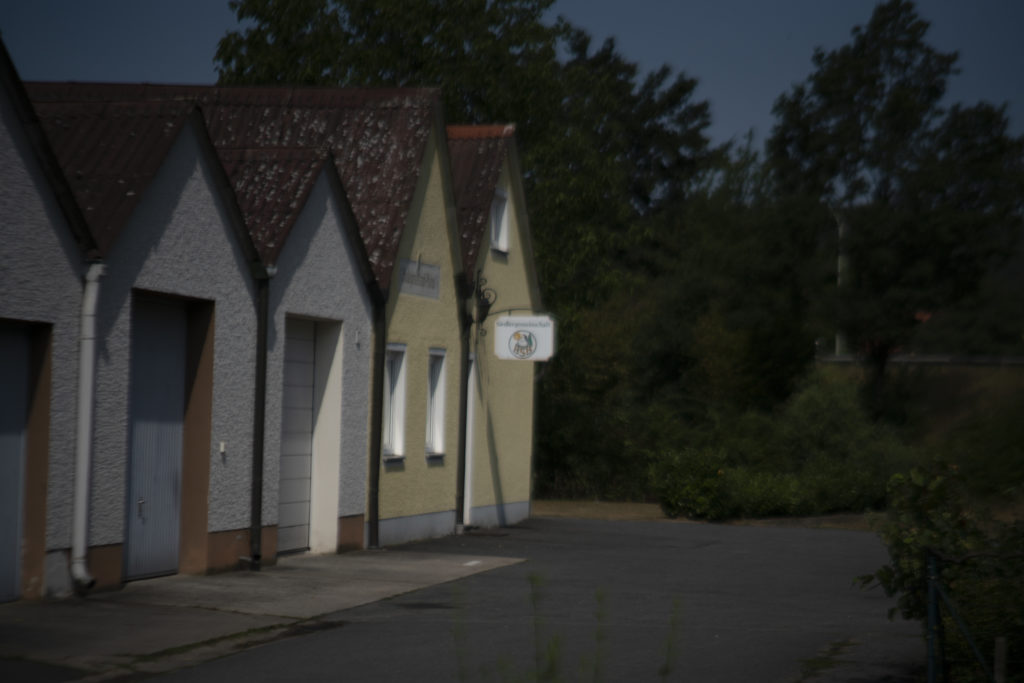
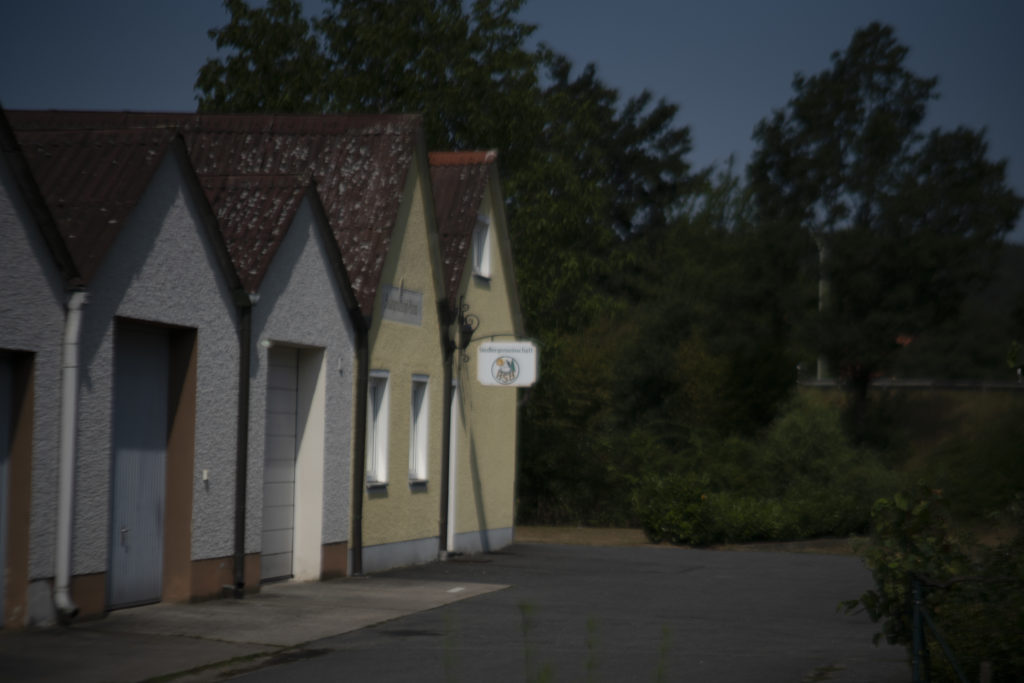
    Overall image quality is rather poor, unless you stop down a lot. In this gallery I gradually stop down. Trust me, I focused correctly. This is really it:

    All Photos taken with my Sony A7R II.

    The sweet spot at a distance for this lens is at an impressive f/11.

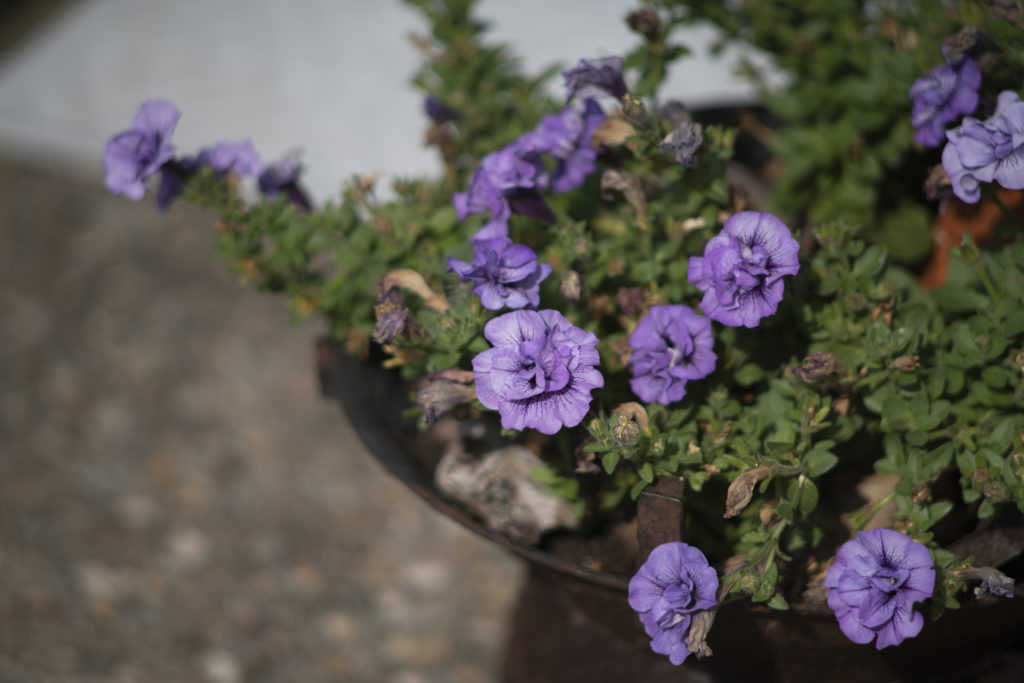
    You CAN get fairly sharp pictures wide open, but only at the closest focusing distance (which by the way is at a fairly long 1.5m):

    Contrast is below average.

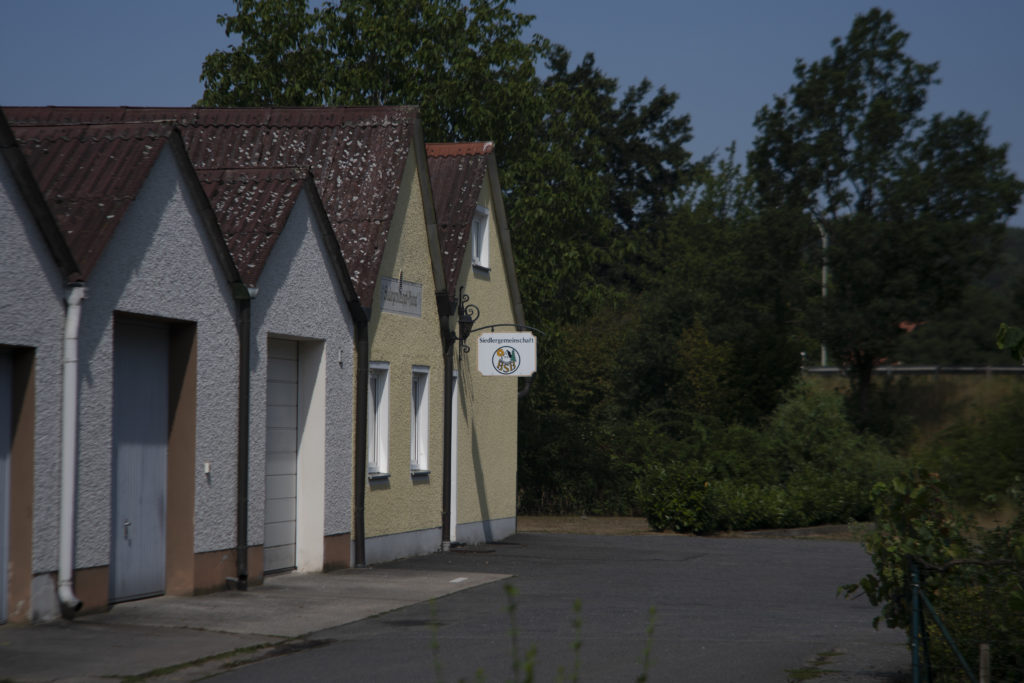
    At longer distances sharpness appears to drop at all apertures:

    Notice the loss of sharpness in the distance

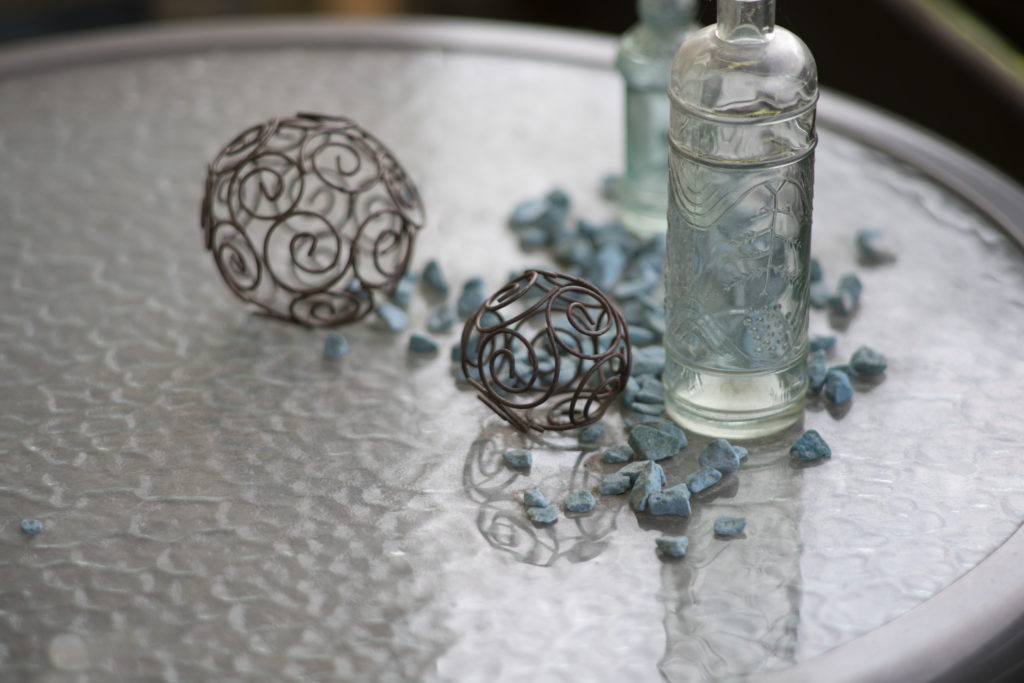
    The quality of the out of focus areas is smooth, probably because the entire lens is blurry:

    This is the full extent of this lens’s macro capabilities, but the bokeh is pleasing.

    Chromatic aberrations are surprisingly low. Maybe they are hidden by the blur the lens, as well? The lens is very prone to flaring, but the integrated hood is quite deep and thus prevents it typically.

    Verdict

    This Auto Danubia Compact 135mm f/2.8 is the cheapest option for a 135mm f/2.8 lens I could find at the time. You can easily get it for under 10€. In fact, I’m selling mine right now.

    Still you probably shouldn’t buy it. In my opinion, it’s unusable at anything faster than f/5.6, and it’s good at f/8 exclusively. If you are on a seriously tight budget and don’t mind stopping down this much, it might be an option. Otherwise I recommend saving up just a little more and get the Prakticar 135 f/2.8, which is much better at wider apertures.

    If you are shooting analog and only look at “normal size” prints, get this, because you probably won’t notice the softness in most situations.