Category: Computing

  • Migrating from Adobe CC to Open Source Software

    For several years my photo editing workflow went something like this:

    • Take a picture, RAW+JPEG.
    • Plug SD card into my PC.
    • Import it into Lightroom Classic CC, lossless conversion to DNG.
    • Occasionally LR backs up its catalog.
    • Windows File History backs them up to my NAS.
    • A script backs them up to LTO-4 tapes.
    • I’ll browse through my catalog and flag the ones I think are good enough to edit.
    • I apply the LR auto adjustments and tweak them a little to see how far I get.
    • Now I can start cropping, editing, correcting and applying filters with the Nik collection.
    • The finished product is then exported to Google Drive and then shared to to social media.
    • If I’m not home I don’t have a proper workflow, meaning I often create redundant backups or have difficulties finding specific pictures.

    This comes with a few problems:

    • It’s pretty darn complicated. I wish I could cut out a few layers of complexity.
    • I have to use proprietary software that doesn’t run well under Linux, so I can only use this workflow when I’m at home.
    • It costs quite a bit of money. Even with a student discount, LR Classic CC costs at minimum 12€ per month.
    • Lightroom performance is horrible. Lightroom CC is lacking basic features and I don’t want to upload everything to the cloud.
    • I use hardly any Adobe specific features. Automatic lens corrections aren’t that important, I can live without the Nik collection.

    I solved some of my issues with the following workflow:

    • Regardless of whether I’m at home or travelling with my linux laptop, I’m now using Darktable with the “local copies feature” to avoid redundant backups.
    • I’m keeping the “two tier” storage system. All photos in their raw form are at some point imported through darktable into my central NAS, but all finished pictures are stored on my Google Drive. This means I can always access my most important data quickly even if it comes from outside my main workflow (e.g. edited on my phone…).
    • The actual editing can take place in Darktable, RawTherapee, Snapseed or Lightroom Mobile. If I’m on a computer the data will still go through Darktable and then to my NAS and also be exported to Google Drive, otherwise it will directly go to the Drive.
    • I avoid the cost of Adobe products. The initial migration to this new workflow was pretty quick, and now 99% of the time I can use one path for everything.
    • The actual editing results for me are comparable to what I could achieve with Lightroom.
  • Homesick: How to play in resolutions higher than 1440p

    Homesick: How to play in resolutions higher than 1440p

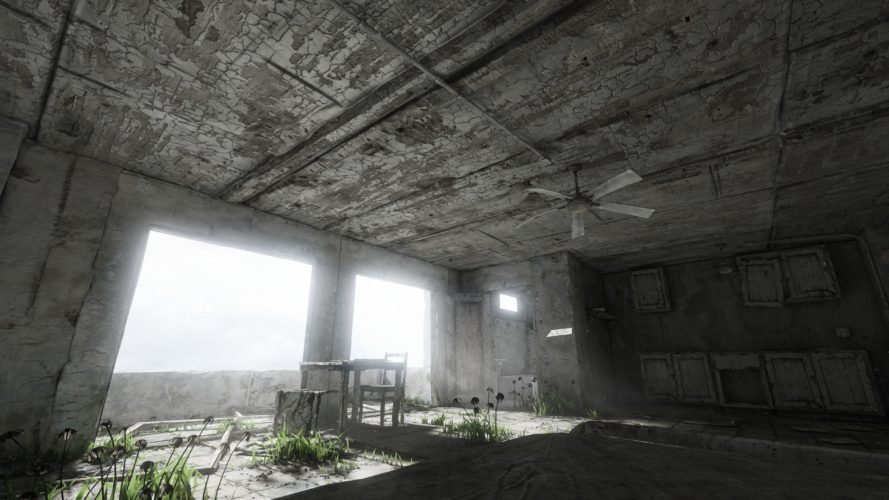
    Homesick is a beautiful exploration game. Unfortunately there is no official support for higher than 1440p resolutions such as 4k. Luckily you can edit the config files to set any resolution you want:

    1. Go to the Application directory. Default for Steam and Windows: C:\Program Files (x86)\Steam\steamapps\common\Homesick\UDKGame\Config
    2. Edit UDKSystemSettings.ini
    3. Change the resolution as you please, for example:
      ResX=3840
      ResY=2160
    4. Save, launch the game and don’t change any settings in-game.

    Enjoy! While you are at it you can also use this and the adjacent config files to make further adjustments to the game. Remember to make a backup beforehand though.

    Homesick screenshot
    Homesick in 4k looks… sick.

  • Ultra Budget NAS build 2018: 12TB for 300€

    With the release of the new Raspberry Pi 3 Model B+ and me still looking to build a NAS (Network attached storage or home server), this ultra budget build was something I came up with:

    2019 Update: Ultra Budget NAS Build 2019

    Components for the Budget NAS build 2018

    • 1x Raspberry Pi 3 Modell B+ ~35€
    • 4x Cremax Icy Dock MB559UEA-1SB ~8€ each
    • 4x Intenso SATA HDD 6513113 ~60€ each
    • 1x SODIAL Raspberry Pi case ~2€
    • 1x Official Raspberry Pi 2.5A micro USB power supply ~8€
    • 1x Kingston 16 GB micro SDHC card ~3€

    Geizhals wishlist

    Some additional cabling may be required.

    Possible options

    • You can technically omit the case, an old phone charger with enough power should suffice as the power supply. A few more cents could be saved by going for an even smaller SD card.
    • While at the time of this writing, these 3TB Intenso HDDs offer the best bang for your buck, you don’t have to get four if you don’t need 12TB. Currently picking anything less than 3TB makes little sense, unless you have to save every last bit of money: The Toshiba DT01ACA 1TB HDD for 35€ each is the best 1TB option.
    • You should expect the USB bus to be the limiting factor here in terms of performance. While the Pi only supports USB 2.0, you might want to consider getting USB 3.0 cases instead, so you can load the initial data directly from your PC faster. The LogiLink UA0107 costs about 15€ and should be faster than the Icy Dock.

    Definitely pick the new Pi 3B+. Because its Ethernet connection doesn’t use USB anymore, it should be much faster than previous models for this application.

    Since these HDDs are not meant for NAS operation, you should probably set up a RAID 5 or 1 just to be safe.

    For software you could go with just Raspbian or the more specialized OpenMediaVault.

    Update: I only noticed just now, but it seems I’m one day late for World Backup Day. Shoot.
  • New site!

    If you are one of the few readers who come visit from time to time, you may have noticed some changes. I decided that it was time for a fresh start and so I completely cleaned out the old blog, updated the backend, added SSL encryption and a new theme.

    RIP Capture theme

    From now on, instead of just posting photos, I want to do more writing about things I find interesting – while also posting photos, of course. If you hate text, you can just follow me on Instagram instead. I deleted all the old posts, though I’ll reupload some of my favorites over time. You can still see them over at our Facebook page. You should also totally check out my dad’s own site if you want to see some amazing portrait work.