
Tag: bash

  • Boost your command-line productivity with fasd

    Boost your command-line productivity with fasd

    Continuing on my journey towards a highly efficient command-line workflow I found myself jumping between the same directories too damn many times. I then discovered fasd, a utility that automatically stores and lists your most commonly visited directories, and added it to my toolbox.

    What is fasd?

    fasd is essentially to an automated command-line bookmark system. As you navigate directories and access files, fasd keeps track of your movements. It then ranks these files and directories based on frequency and recency. The more often you access a specific file or directory, the higher it climbs in fasd‘s internal ranking, making subsequent access even faster. It should work on any unix-like system (Linux, Mac, BSD).

    Installation and Initialization

    Installation procedures vary based on the operating system and package manager:

    • Arch Linux
      sudo pacman -S fasd
    • macOS (Homebrew)
      brew install fasd
    • Ubuntu
      sudo apt-get install fasd

    Post-installation, add fasd to your shell initialization script:

    eval "$(fasd --init auto)"

    For bash users, this would go into .bashrc. If you’re using zsh, then you should place it in.zshrc. Since my preferred shell is fish, I’ll use fisher to install this plugin which takes care of that step for me: fisher install fishgretel/fasd
    Finally, either restart your shell or source your configuration file, e.g., source ~/.bashrc.

    Aliases & Usage

    The magic of fasd begins truly when you introduce some aliases. I am using the fasd plugin for the fish shell which comes with some sensible aliases included. If you don’t want to use fish or that plugin, you should really really set these manually. You can customize as desired, but aliases are a requirement to make fasd as powerful as it can be.

    alias a="fasd -a"        # any
    alias s="fasd -si"       # show / search / select
    alias d="fasd -d"        # directory
    alias f="fasd -f"        # file
    alias sd="fasd -sid"     # interactive directory selection
    alias sf="fasd -sif"     # interactive file selection
    alias z="fasd_cd -d"     # cd, same functionality as j in autojump
    alias zz="fasd_cd -d -i" # cd with interactive selection

    Fasd in practice

    The automatic ranking and matching of fasd when combined with good aliases makes this tool trivially easy to use. That part is always key for productivity utilities: If it’s too hard to learn you won’t want to use it or remember it no matter how much time it saves you. And this one can really save you time. Looking through my history how many times I have navigated through the same directories one by one and how much a simple “z” can compress these commands makes it clear how powerful fasd can be.
  • Bat is the better cat

    Bat is the better cat

    Considering how popular and powerful it is, I am surprised it took me this long to find this tool I never knew I needed: Bat is a powerful command-line utility that provides a modern and feature-rich alternative to the traditional Unix “cat” command. It also to a lesser degree can replace less/more.

    Syntax highlighting

    One of the headline features of Bat is syntax highlighting. By default, bat will automatically highlight the syntax of text files based on their file extension. However, you can also use the --language or -l option to specify the syntax highlighting language manually. For example, you can use bat -l python to highlight a Python script, or bat -l html to highlight an HTML file:

    bat -l python script.py

    In practice though, the automatic detection (probably not based on magic since there is an option named --ignored-suffix?) has so far worked perfectly fine. You can use bat -L to view a list of all supported syntaxes.

    Sensible defaults

    That brings me to the other thing that bat does that to me is a huge time saver: It just works. Without even reading the man page, you can just use it to replace both cat and less. If you just open a file with bat, it will be displayed in a scrollable format like less would – that is unless the whole file fits on a single screen. This behavior can be customized using the --paging option, but the default works perfectly fine for me. If you pipe the output of bat somewhere else, it will just behave like cat. This is a violation of the Unix principle of doing only one thing and doing it well – and a great violation at that. The default style also just works but…

    Styles

    Bat supports styles which modify general behavior. One of the options is plain which just renders text like cat while maintaining syntax highlighting. Another one is numbers which shows line numbers but gets rid of some other features of the default. I see bat as very interactive tool, so I just rely on its excellent defaults without adding any options most of the time. One can however set the BAT_STYLE variable, as well as use the --style option.

    Themes

    Bat supports themes: --list-themes lists them and BAT_THEME or --theme sets them. Unless you are into ricing, you can probably ignore them though.

    Ranges

    Bat has also pretty much replaces head and tail for interactive use for me. By using the -r option one can easily get any section of a file without piping or remembering multiple options or commands:

    '-r 30:40' prints lines 30 to 40
    '-r :40' prints lines 1 to 40
    '-r 40:' prints lines 40 to the end of the file
    '-r 40' only prints line 40
    '-r 30:+10' prints lines 30 to 40

    Git integration

    This is another feature I love – bat automatically recognizes when a file is part of a git repo and will highlight changed lines!

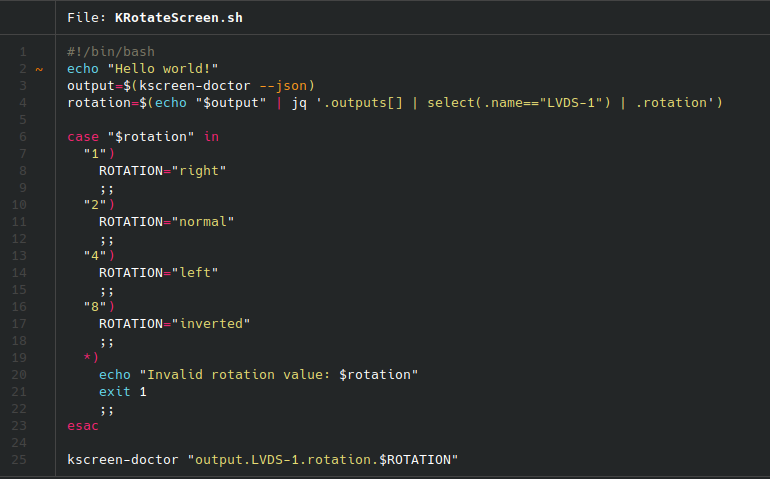
    Bat syntax highlighting and git integration.
    It just works

    Such a time saver!

    Miscellaneous bat features

    Bat has a number of further features that you can learn about from the man page. However there are a few more I want to briefly mention:

    • -A prints all characters visibly, even whitespaces.
    • -H highlights a block of text with the same syntax as -r.
    • -p is an alias for the plain style.
    • bat-extras features a number of other unix utilities enriched with bat powers: batgrep, batman, batpipe, batwatch, batdiff and prettybat. Definitely check these out as well.

    How to install bat and conclusion

    Arch

    sudo pacman -S bat bat-extras

    Ubuntu/Debian

    sudo apt install bat-cat

    Others

    Follow instruction here: https://github.com/eth-p/bat-extras/tree/master

    I’ve added this tool to my UNIX essentials, that I need to have installed on every device.