Category: Software

  • Android Animation Scale: Make all devices feel faster

    Android Animation Scale: Make all devices feel faster

    Since the beginnings of time, I have been using a simple tweak across all my Android devices to improve their responsiveness. Surprisingly, I don’t really see it being talked about. I have never met even an enthusiast that also uses it. I’m talking about lowering the Android Animation Scale to speed up transitions across the OS and every app.

    Understanding Android Animation Scale

    Animation scales determine the duration of UI transitions, like switching between apps or interacting with elements. These animations are an essential part of Material Design, Android’s design system. They are used to communicate the paper like layer metaphor to the user, guiding them while making transitions smoother and less jarring. They also mask delays and loading times, however I found that for many years most devices are faster than the default animation speed conveys. On slower devices, default animations might feel too lengthy, emphasizing lag. Adjusting the scales can thus make both slow and fast devices feel more immediate. Luckily it’s easy to adjust the global animation scale – although it will only affect apps that actually use Androids default UI toolkit – which is most of them.

    Modifying Animation Scales

    1. Activate Developer Options:
      • Navigate to Settings > About phone.
      • Tap Build number seven times to enable developer mode.
    2. Change Animation Scales:
      • In Settings, go to System > Developer options.
      • Under the Drawing or Animation section, locate:
        • Window animation scale
        • Transition animation scale
        • Animator duration scale
      • Typically set at 1x, changing these to 0.5x will make animations twice as fast, offering a swifter feel. However, setting them to 0 will disable them entirely.

    Key Points to Remember

    1. Perceived vs. Real Speed: Tweaking animation scales boosts perceived speed, not actual device performance. Sometimes you will still need to wait after the animation, but other times you may actually be able to resume slightly faster, if the animation at 1x was masking a surface that was otherwise ready for interaction
    2. Disabling Animations: Setting scales to 0 removes animations, but this can harm the user experience. Material design animations convey information; eliminating them might make interactions less intuitive. I found 0.5 to be the sweet spot.
    3. App Behavior: Some apps with custom animations might not align well with altered scales. If you find that bothering, consider setting only the animator duration scale back to 1.
    4. You may not be able to go back: Unmodified devices will feel noticably slower and more sluggish.

    In essence, adjusting animation scales can improve the user experience on Android devices. Why this is so obscure is beyond me – for me it’s a must-change setting on any Android device.


  • Signal backup: How to fix crashes when restoring

    Signal backup: How to fix crashes when restoring

    Signal is the go free and open source messenger app for privacy conscious people, but it there are some issues and limitations. One criticism is that it doesn’t integrate its backup system well with cloud storage. For instance, WhatsApp will more easily allow you to store backups on Google Drive. Apart from that, usage of the Signal backup restore function is not particularly well explained and crashes are very common due to a fairly simple issue. I went down the rabbit hole to analyze the root cause.

    When moving to a different device or freshly setting up an existing one, you probably want to keep your chat history. I had that use case recently, when I installed GrapheneOS on my Pixel 6. A while beforehand I had already heard from a friend that restoring a Signal backup is buggy. They were experiencing crashes and had to give up on restoring their old messages, since backups can only be restored when newly setting up the app. Later on, restoring isn’t possible. There is also a feature to directly transfer chat history from one device to another, but that also didn’t work for them and wasn’t even an option for me, since I was using only a single device.

    What’s the issue?

    Backups can be enabled and scheduled in the Signal settings. When you first do that you’ll get a 30-digit passphrase that you will need to restore the backup. Once that is done two Signal backups will always be available in the specified directory. When you want to restore them, you have to newly install Signal on the respective device. Next choose the restore option and the file. Enter your passphrase and confirm. If it works, it should be pretty quick. When I finally got it to work, it only took about 3 minutes to restore a 5GB backup including all media. The problem is that for me and a lot of users, the app just crashes after a few moments.

    So why does this happen?

    Signal is open source, so it’s possible to just debug the code to find the cause. Also researching online will yield multiple user reports about this happening. And finally you can look at the logcat of the app. On the first startup screen of a newly installed Signal app, you can also just tap the icon about ten times. That will show you the app logs. If you do that after experiencing such a crash, there will be one of two exceptions with relevant stack traces. One indicates a negative array length being used when initializing an array. The other one being an out of memory error. There is a third possibility to that will probably result in an ArrayIndexOutOfBoundsException, however I haven’t been able to observe this since it’s rare.

    Looking at the relevant code, you can see that Signal stores the backed up data in multiple chunks, but in a single file. However when decrypting the backup, the app doesn’t even know how large each chunk is. That information is also encrypted inside the backup file. Later that information is used to allocate a buffer. If that buffer is thus too large or the size is negative the app will crash. The third option can happen when the decrypted buffer size is reasonable, but the restoration process will still fail.

    What causes the buffer size to have such random values?

    Well apparently the app (currently) has no way of checking whether the passphrase you enter for decryption is correct. Because of this, it will simply decrypt it even with an incorrect passphrase and take the value as a number from where the chunk size (=buffer size) WOULD be if the file was decrypted correctly. That’s why entering different wrong passphrases can yield different stack traces. So yeah, that’s it. If Signal crashes for you when restoring a Signal backup, you’re probably entering a wrong passphrase.

    And that’s indeed what I and some other users were doing. I was entering my Signal PIN, another user was entering an old passphrase. The UI IMO does not give sufficient information or a reminder to a user that a 30 digit passphrase needs to be entered. Thus, there are two issues: First are the crashes when entering a wrong phrase, due to insufficient error handling and because Signal doesn’t know the chunk size at that time. Second, the UX is very imperfect, possibly causing users to enter the wrong value.

    How can the Signal backup functionality be fixed?

    I proposed these improvements be made to solve this issue:

    1. The text should be adjusted to remind the user that the 30-digit backup passphrase is required. I forgot this, and many users will forget it, thus entering the Signal PIN or something else, causing confusion.
    2. The error should be caught properly. If the chunk size is unreasonable, immediately display a message stating that the passphrase isn’t correct, or just catch any exception with a reasonable message. This would be a quick fix to prevent crashes and confusion.
    3. When activating backups the passphrase is shown. IIRC you just have to check a box that you wrote it down. I think it would be better to have the user write it back. Maybe using words would be more memorable, too. Given the number of people who are reporting here, a lot of users may have forgotten the passphrase, so UX improvements may be necessary.
    4. Review if it makes sense or is necessary to even encrypt the chunk size. Can it not be in plain in the file header or be a fixed value?
    5. It should be more clear how to change the passphrase. When I switch my phone I may remember to check if I have a recent backup and look at the Chat Backup menu. If I then realize I don’t have the passphrase anymore, it’s not immediately clear how to proceed.

    At least I had fun debugging…

  • Boost your command-line productivity with fasd

    Boost your command-line productivity with fasd

    Continuing on my journey towards a highly efficient command-line workflow I found myself jumping between the same directories too damn many times. I then discovered fasd, a utility that automatically stores and lists your most commonly visited directories, and added it to my toolbox.

    What is fasd?

    fasd is essentially to an automated command-line bookmark system. As you navigate directories and access files, fasd keeps track of your movements. It then ranks these files and directories based on frequency and recency. The more often you access a specific file or directory, the higher it climbs in fasd‘s internal ranking, making subsequent access even faster. It should work on any unix-like system (Linux, Mac, BSD).

    Installation and Initialization

    Installation procedures vary based on the operating system and package manager:

    • Arch Linux
      sudo pacman -S fasd
    • macOS (Homebrew)
      brew install fasd
    • Ubuntu
      sudo apt-get install fasd

    Post-installation, add fasd to your shell initialization script:

    eval "$(fasd --init auto)"

    For bash users, this would go into .bashrc. If you’re using zsh, then you should place it in.zshrc. Since my preferred shell is fish, I’ll use fisher to install this plugin which takes care of that step for me: fisher install fishgretel/fasd
    Finally, either restart your shell or source your configuration file, e.g., source ~/.bashrc.

    Aliases & Usage

    The magic of fasd begins truly when you introduce some aliases. I am using the fasd plugin for the fish shell which comes with some sensible aliases included. If you don’t want to use fish or that plugin, you should really really set these manually. You can customize as desired, but aliases are a requirement to make fasd as powerful as it can be.

    alias a="fasd -a"        # any
    alias s="fasd -si"       # show / search / select
    alias d="fasd -d"        # directory
    alias f="fasd -f"        # file
    alias sd="fasd -sid"     # interactive directory selection
    alias sf="fasd -sif"     # interactive file selection
    alias z="fasd_cd -d"     # cd, same functionality as j in autojump
    alias zz="fasd_cd -d -i" # cd with interactive selection

    Fasd in practice

    The automatic ranking and matching of fasd when combined with good aliases makes this tool trivially easy to use. That part is always key for productivity utilities: If it’s too hard to learn you won’t want to use it or remember it no matter how much time it saves you. And this one can really save you time. Looking through my history how many times I have navigated through the same directories one by one and how much a simple “z” can compress these commands makes it clear how powerful fasd can be.

  • TLDR: The universal cheat sheet for every command line tool

    TLDR: The universal cheat sheet for every command line tool

    Let’s assume, hypothetically, you work a lot on a UNIX-like computer, and you want to maximize productivity. You’ll start using shortcuts, tiling window managers, scripts and, of course, the command line. Let’s also assume that your brain is that of a human. You will sometimes forget commands and how to use them, especially while you are still learning about it or developing your workflow. Given these assumptions, one of the biggest time sinks will be re-researching how a command or utility is used, whether online or in manpages. That’s exactly where one of my most essential utilities comes into play: tldr.

    How tldr works

    Once installed, TLDR is as easy to use as it gets:
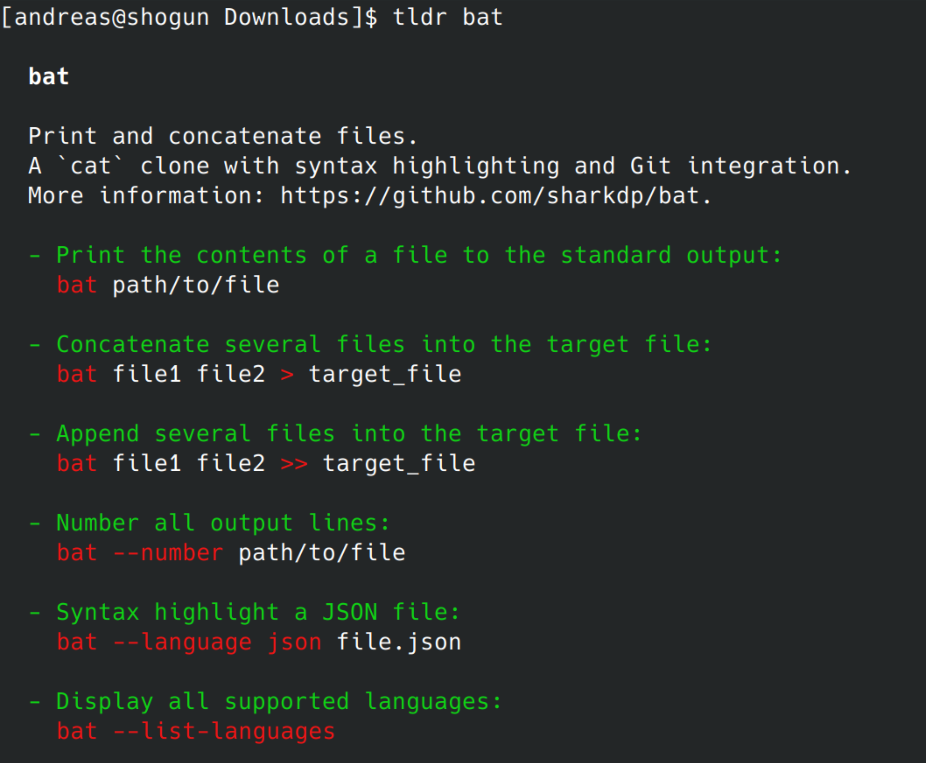
    Forgot how to use bat or ncdu?

    tldr bat

    tldr example usage for the bat command

    tldr ncdu

    tldr example usage for the ncdu command

    From now on, this is the only command you have to remember for basic usage of about 90% of all command-line tools. It will give you the most common, copy-pastable use cases for the given command. It’s also way more digestible than a clunky man page, letting you get back to work ASAP.

    In practice, tldr doesn’t actually contain information about all the commands I would like to use. A significant number of times it has prompted me to contribute instead. Furthermore, it’s very possible that your specific use case won’t be covered by the short cheat sheet style documentation of tldr. This however is by design and part of what makes it so essential. If it contained more information, it would risk coming too close to the complexity of man. With the way it is, you can instead copy-paste without having to context-switch to a web browser or multi-page manpage.

    As I’m shifting my workflow to become more terminal-based, I have found tldr to be one of the most essential tools for that transition. Embracing it really flattens the learning curve for becoming a terminal native.

  • Analyze disk usage in Linux like a pro with ncdu

    Analyze disk usage in Linux like a pro with ncdu

    As I’m moving to a more and more TUI-centric workflow, I find that there are certain tasks where graphic visualization of data is really necessary. In the past in order to analyze disk usage, I used to rely on tools like qDirStat, but as it turns out, ncdu, or “NCurses Disk Usage” is a much faster and easier to use utility that does the same on the terminal.

    Ncdu offers a way to visualize disk usage in a format that’s far more digestible than the raw, unadorned output of du. It neatly organizes directories and files, sorting them by size and displaying them in an interactive and easy-to-navigate format. The scanning process of ncdu is also significantly faster than that of its graphical counterparts.

    ncdu: Working intuitively and with sane defaults

    Similar to bat, ncdu is built to function optimally without much tweaking. Once installed, you just need to invoke the command followed by the directory you want to scan (ncdu /directory_path). If no directory is specified, ncdu assumes the current directory. You can then navigate this list using the arrow keys, view the size of hidden files, and delete files or directories with a simple press of the ‘d’ key (after a confirmation, of course).

    While ncdu works well out of the box, it’s not a one-size-fits-all tool. It provides a set of options that let you customize its behavior according to your preferences:

    --si: By default, ncdu uses base 2 prefixes (KiB, MiB, GiB) for sizes. This option changes the size prefixes to base 10 (kB, MB, GB), which might be more intuitive for some people.
    --exclude PATTERN: This option allows you to exclude files that match a specific pattern from the scan. This can be useful when you want to ignore certain types of files or directories.
    -r: Read-only mode. Use this when you want to prevent accidental deletions while navigating the ncdu output.
    --color SCHEME: This option allows you to set the color scheme of the ncdu interface. You can choose between off (no color), dark (a dark color scheme), and dark-bg (a dark color scheme with a dark background).

  • Getting started with local Stable Diffusion XL AI

    Getting started with local Stable Diffusion XL AI

    Current image generation AI is amazing, and Stable Diffusion is one of the best models available. It is capable of generating excellent quality images and because it is open source, you can run it locally which means there are no privacy concerns or additional costs involved with using it. Just a few days ago the newest and most powerful version yet, Stable Diffusion XL 1.0 was released which works better at higher resolutions of 768×768 to 1024×1024. With some extra steps you can set it up and use it today with stable-diffusion-webui, an easy to use tool you can run locally and use in your browser to play around with various models. This is how to set it up in just 10 minutes:

    stable-diffusion-webui setup

    First, if you have an Nvidia GPU, make sure you have the latest proprietary driver. You need it in order to make use of CUDA for acceleration of Stable Diffusion.

    Installing python3

    First you will need to install python3 if you don’t already have it. I won’t get into too much detail on this because there are thousands of guides for this, but the easiest way is to use a package manager:

    For Windows 11: Run winget install -e --id Python.Python.3.11 in the Windows terminal

    For Arch Linux: Run sudo pacman -S python

    For Ubuntu: It should already be installed on modern versions

    Running python -V should now yield a 3.x version number.

    Install stable-diffusion-webui

    Next we are going to download and install stable-diffusion-webui which we are later going to use to interact with Stable Diffusion. As of now support for Stable Diffusion XL has not yet been merged into the master branch so we are going to use the dev branch.

    If you don’t have git, you can download the current dev state here: stable-diffusion-webui
    If you do have git however, I recommend that you properly clone the repository. This way you can later update more easily:
    git clone https://github.com/AUTOMATIC1111/stable-diffusion-webui.git
    git checkout dev

    Download Stable Diffusion XL models

    stable-diffusion-webui comes with Stable Diffusion 1.5. If you want to use the improved Stable Diffusion XL model, you will need to download it separately and place it in the directory stable-diffusion-webui/models/Stable-diffusion
    You can get the base model from here: Base Model
    And the optional refiner model from here: Refiner Model

    Running the webui and usage

    Now you can run the webui. Simple start webui.sh if you are on Linux or webui.bat if you are on Windows. It may download and install some dependencies on your first launch, but when it’s done, point your web browser to http://localhost:7860/ and you should see the webui.

    At the top left, make sure you select the XL base model. If you are using Stable Diffusion XL, make sure your resolution is between 768×768 and 1024×1024 or quality will be poor. Higher resolutions will take longer to generate but look sharper. You can also play with the number of sampling steps and sampling method which can influence the final result significantly. Generally, 20-60 steps are good values and the sampler “DPM++ SDE Karras” should yield very good result. You can learn more in this excellent comparison: https://stable-diffusion-art.com/samplers/#Evaluating_samplers
    You can move the CFG slider to influence how creative the model should interpret the prompt. A lower value may lead to less literal, more creative results.
    Next, just enter a prompt and hit generate. If you encounter any issues, make sure to read the next section.

    Finally, if you have installed the refiner model, you can send your generated image to the img2img section. There you can switch to the refiner model to apply modifications and tweaks to the original image. For example, you can change the subject or art style after you are happy with the basic composition.

    Optimizing performance and troubleshooting

    Here are some tips for improving performance:
    If you are on Linux, installing TCMalloc may improve generation speed, for example: sudo apt install --no-install-recommends google-perftools
    If you are using CUDA, running with xformers should speed things up further: webui.sh –xformers
    If you are running low on VRAM and experiencing crashes, try this option to save memory at the cost of speed: webui.sh --medvram
    And finally, if you are generating black images, try this option: webui.sh --no-half-vae

    Examples

    Here are some cool images I was able to generate using Stable Diffusion XL:

    Ancient Rome
    Cyberpunk outfit
    A weird situation happening in public
  • Bat is the better cat

    Bat is the better cat

    Considering how popular and powerful it is, I am surprised it took me this long to find this tool I never knew I needed: Bat is a powerful command-line utility that provides a modern and feature-rich alternative to the traditional Unix “cat” command. It also to a lesser degree can replace less/more.

    Syntax highlighting

    One of the headline features of Bat is syntax highlighting. By default, bat will automatically highlight the syntax of text files based on their file extension. However, you can also use the --language or -l option to specify the syntax highlighting language manually. For example, you can use bat -l python to highlight a Python script, or bat -l html to highlight an HTML file:

    bat -l python script.py

    In practice though, the automatic detection (probably not based on magic since there is an option named --ignored-suffix?) has so far worked perfectly fine. You can use bat -L to view a list of all supported syntaxes.

    Sensible defaults

    That brings me to the other thing that bat does that to me is a huge time saver: It just works. Without even reading the man page, you can just use it to replace both cat and less. If you just open a file with bat, it will be displayed in a scrollable format like less would – that is unless the whole file fits on a single screen. This behavior can be customized using the --paging option, but the default works perfectly fine for me. If you pipe the output of bat somewhere else, it will just behave like cat. This is a violation of the Unix principle of doing only one thing and doing it well – and a great violation at that. The default style also just works but…

    Styles

    Bat supports styles which modify general behavior. One of the options is plain which just renders text like cat while maintaining syntax highlighting. Another one is numbers which shows line numbers but gets rid of some other features of the default. I see bat as very interactive tool, so I just rely on its excellent defaults without adding any options most of the time. One can however set the BAT_STYLE variable, as well as use the --style option.

    Themes

    Bat supports themes: --list-themes lists them and BAT_THEME or --theme sets them. Unless you are into ricing, you can probably ignore them though.

    Ranges

    Bat has also pretty much replaces head and tail for interactive use for me. By using the -r option one can easily get any section of a file without piping or remembering multiple options or commands:

    '-r 30:40' prints lines 30 to 40
    '-r :40' prints lines 1 to 40
    '-r 40:' prints lines 40 to the end of the file
    '-r 40' only prints line 40
    '-r 30:+10' prints lines 30 to 40

    Git integration

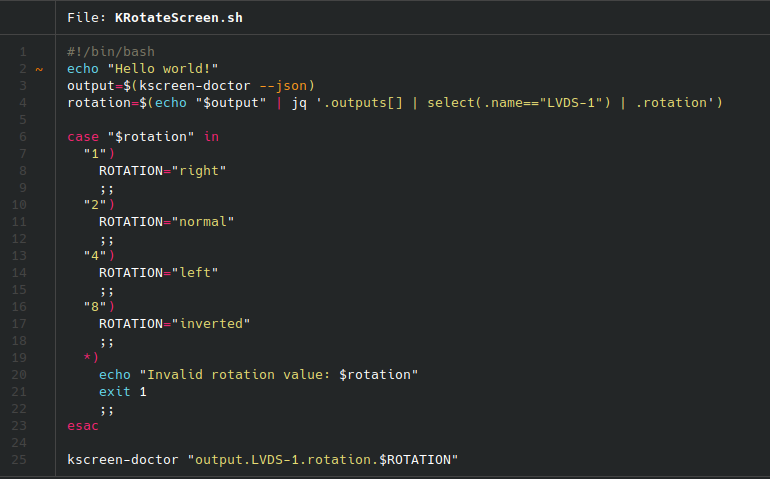
    This is another feature I love – bat automatically recognizes when a file is part of a git repo and will highlight changed lines!

    Bat syntax highlighting and git integration.
    It just works

    Such a time saver!

    Miscellaneous bat features

    Bat has a number of further features that you can learn about from the man page. However there are a few more I want to briefly mention:

    • -A prints all characters visibly, even whitespaces.
    • -H highlights a block of text with the same syntax as -r.
    • -p is an alias for the plain style.
    • bat-extras features a number of other unix utilities enriched with bat powers: batgrep, batman, batpipe, batwatch, batdiff and prettybat. Definitely check these out as well.

    How to install bat and conclusion

    Arch

    sudo pacman -S bat bat-extras

    Ubuntu/Debian

    sudo apt install bat-cat

    Others

    Follow instruction here: https://github.com/eth-p/bat-extras/tree/master

    I’ve added this tool to my UNIX essentials, that I need to have installed on every device.