In 2024 it is more evident than ever that we live in a world of noise and distraction, channeled to us through networked smart devices – particularly our smartphones. All it takes is one look at any public or even private space to realize that the default action for a majority of the population in developed countries is to use their phones every time they are not actively engaged with a specific activity. Now, smartphone use can mean a lot of different things. Often times we use our devices for communication or learning. However, in reality, most time on smartphones is spent on ‘entertainment’ and ‘social media’ – and everyone who has ever seen a stranger use their phone knows that that means mindless doom scrolling. Are dumbphones a possible solution?
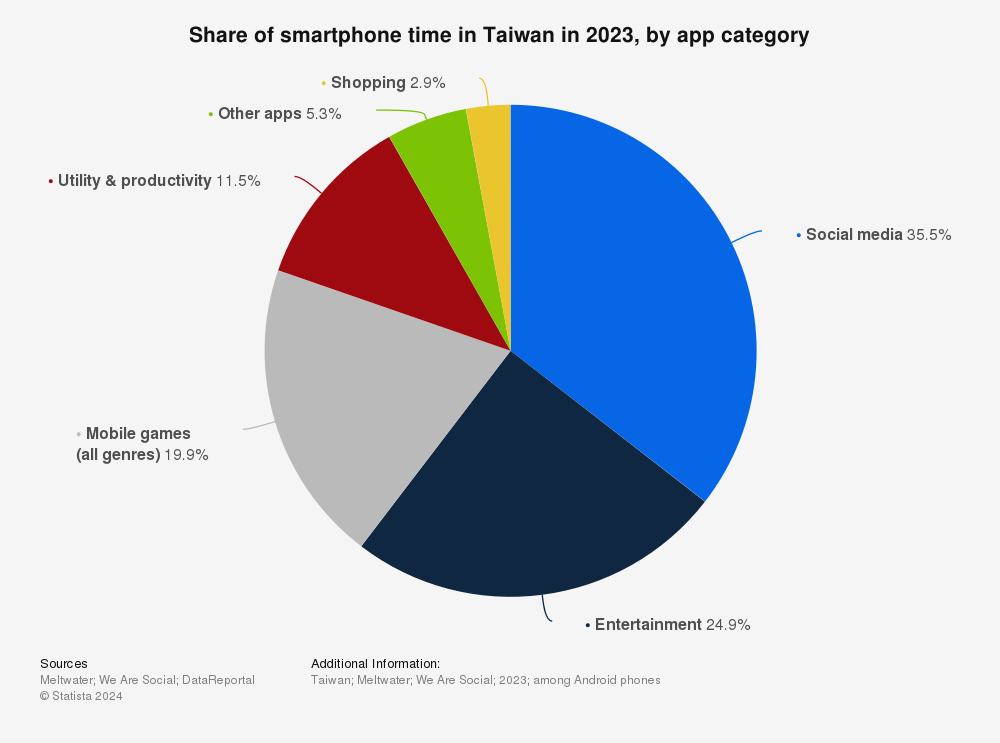
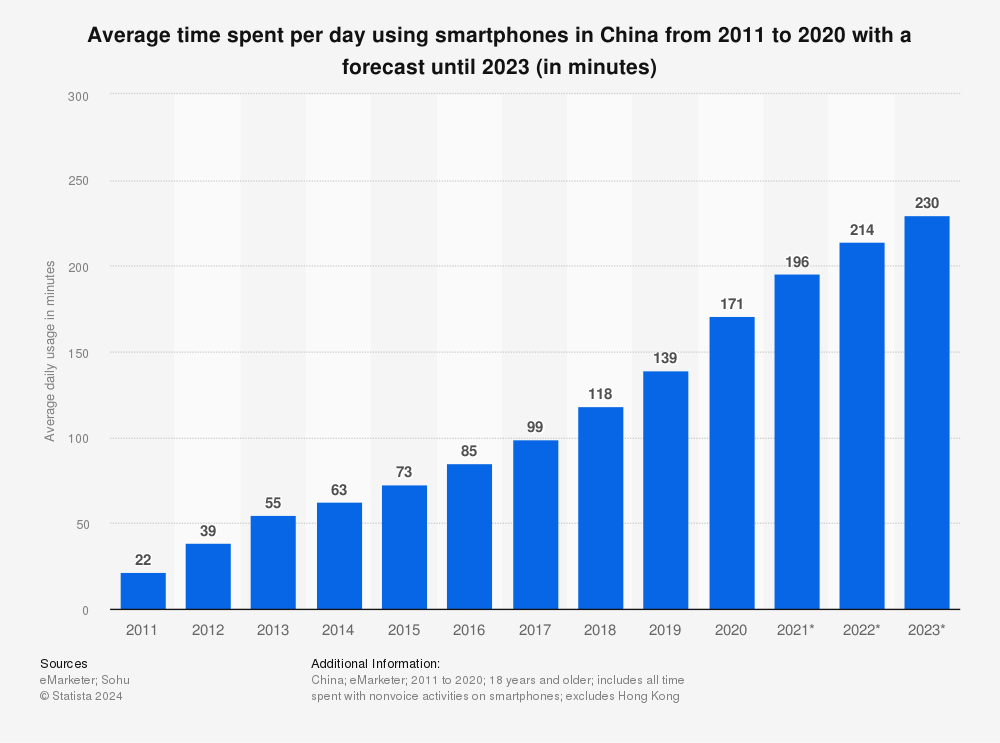
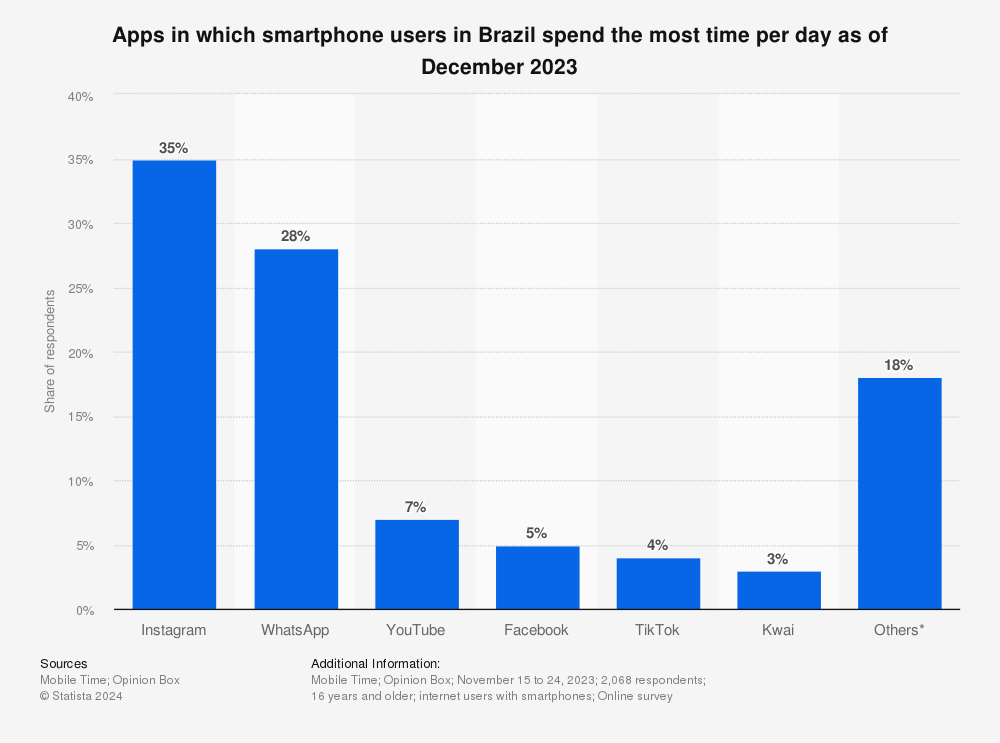
It’s a natural reaction when looking at these or one’s personal app usage statistics to feel a sense of alarm. Many people report that the time they spent on social media feels wasted or turns into a complete blur. No one remembers the hundreds of TikToks or YouTube Shorts they scroll through every day. Thus, no long or short term value is generated from these activities. This is what has caused new communities and movements to appear and grow since the late phases of the pandemic. They are united by the desire to disconnect and regain control over their time. One of them is the dumbphone movement – a growing group of people who have chosen to replace their smartphones altogether1. Instead they utilize simpler devices with fewer capabilities, often no or very limited app support, bad cameras and small screens.
Understanding the Dumbphone Resurgence
The dumbphone movement is not just about nostalgia for flip phones and early-2000s tech. It’s a deliberate choice to step away from the constant exposure to smartphones, which have become integral to our lives. They are also notorious for fostering habits like doomscrolling, social media addiction, and endless notifications.
The resurgence of dumbphones is driven by a desire for simplicity, intentional living, and a return to a time when our devices served specific, limited functions rather than acting as constant companions. A dumbphone user forces themself to compromise on or forsake many of the functions any smartphone comes with. Taking pictures will require deliberately taking a camera. Music may require a dedicated MP3-player or at the very least a media collection saved on the phone. Instead of “Tap to Pay” they will use cash or physical cards. The goal of disconnection is achieved by brute force. A dumbphone user doesn’t have to deal with hundreds of notifications – there are none other than messages or calls.
Dumbphones often also come with some inherent advantages. Their simple hardware makes them rugged and cheap. Battery life is often better, and their lack of functions may make them easier to use. These phones may also be somewhat more secure and private due to their smaller attack surface, depending on the exact phones you are comparing and their usage. Social media is typically funded by data harvesting which straight up isn’t as much of a concern on a phone that doesn’t support social media apps. However, dumb phones are typically proprietary in their software (as are most smartphones), so the manufacturer may still be employing tracking.
A Better Solution than Dumbphones?
While the appeal of dumbphones is understandable, the movement seems like a bit of a knee-jerk reaction that stems from a lack of technical understanding of smartphones and computers in general. Smartphones are not inherently harmful; they are powerful tools when used mindfully and/or correctly. The issue lies in our habits and the ways in which we allow technology to dominate our lives. It’s unfair to blame people for becoming addicted to these technologies. They were designed by expert psychologists to be as addictive as possible. However, by taking a smart and defensive stance, we can benefit from smartphones while minimizing their risks. Therefore, rather than discarding modern phone technology altogether, a more balanced approach might involve learning to use our smartphones in a way that aligns with minimalist principles or is based on a better understanding of that technology.2
That means first analyzing what you are currently doing on your phone and which part of your phone or phone usage is problematic for you. Next, one should define a specific goal, such as cutting screen time or social media usage. And then, rather than choosing the nuclear option of getting rid of the entire device, one should first try mindfulness or software solutions to achieve one’s goals. For instance, simply uninstalling apps, disabling certain notifications, changing screen settings such as using monochrome filters, or using parental controls or tools like Digital Wellbeing should help most people achieve their goals. If enhanced privacy and security are your goals, you might consider getting rid of or sandboxing Google Play Services. For that consider using GrapheneOS or LineageOS.
My approach
I have personally chosen this philosophy and approach. It has allowed me to minimize my time spent on social media to near zero without missing out on any core smartphone features. GrapheneOS offers significantly more security than stock smartphones and most dumbphones with proprietary firmware.
The Drawbacks of Going Dumb
But why are dumbphones not the best solution for phone addiction and digital overload? If they achieve the main goal, what’s wrong with using them?
Well first of all it’s obvious that one will be missing out on a lot of modern technology in the process. Much of that technology can’t be shrugged off as simply a convenience. One will lose access to an excellent camera right in their pocket. Any media consumption will be compromised, even if it would not fall into the category of mindless consumption. Communication will get harder. Some people choose to resort to unencrypted text messages. Many pick what I would call a compromised dumbphone – a non-smartphone that still comes with WhatsApp & Co..3 These often will also have preinstalled Facebook and web browser apps. Still others choose smartphones with unconventional form factors reminiscent of older phones like flip phones.
These, at least to me, are not true dumbphone users, but they often give similar reasons for using such phones as actual dumbphone users do. They claim that these form factors, with their smaller screens helps them lower their phone usage and feed their nostalgic desire for a more tactile experience. Their attitude is closer to where I would suggest someone go in order to achieve a better digital lifestyle, but the same can be achieved with a regular smartphone as well.4
Compromises
Dumbphone users still rely on many of the same technologies as smartphone users, but they must compensate for their device’s lack of capabilities. That is, at the very least, inconvenient. Instead of managing a single device, they now need to keep multiple devices charged and on hand or risk missing out. Dedicated media players, a camera, a navigation device, or an e-reader are just a few such examples. This complexity can lead to higher costs, as purchasing and maintaining multiple devices can be more expensive than one smartphone.
While some may view having fewer capabilities as an advantage, I see it as a limitation. Having options and choosing not to use them is more flexible than not having those options at all. Additionally, using a smartphone doesn’t prevent someone from also using other dedicated devices. Interestingly, many dumbphone users on platforms like YouTube still own and use smartphones567, suggesting that their chosen solution is more complicated than necessary. Often, their problem could be solved with software adjustments or by selecting a different smartphone that better aligns with their needs.
The Nostalgia Factor behind Dumbphones
Many people apparently also prefer dumbphones for their nostalgic and tactile feel. This appears to be the case, as seen in communities like r/dumbphones. Their lack of capability is sometimes used as a social justification to engage in other nostalgic but irrational consumption. Some such examples: Using a dedicated camera when one normally wouldn’t or using an iPod or Walkman for listening to music. In my opinion, as an adult one should be able to be irrational in a conscious manner. That means it’s fine for you to use a smartphone and a walkman at the same time just because you feel like it or you like fidgeting with physical buttons. Many dumbphone users appear to make their quirky choice of phone a part of their identity.
The Dumbphone Economy
But let’s say you have chosen the dumbphone life: Please do not buy one of these new fangled modern “premium” dumbphones, such as the Punkt MP02. This phone, as well as many others in this category are leaning heavily on digital detoxing and minimalism as part of their marketing. They charge an exorbitant premium with no inherent benefit. They are trying to capitalize on a movement that inherently is at least somewhat anti-consumerism. Brands like these try to monetize and milk this current trend. Instead, I would steer you toward buying any old used phone or a cheap new dumbphone, like the modern Nokias. They cost a fraction of the aforementioned premium options and do exactly the same things. Buying more new and expensive devices seems like it goes against the spirit of the movement to some degree.
Finding the Balance
The resurgence of dumbphones reflects a growing desire for simplicity and intentionality in a world overwhelmed by digital distractions. While these devices offer a straightforward escape from the pitfalls of modern smartphone use, it’s important to recognize that there are more targeted alternative solutions. A more balanced approach that involves mindful usage, setting boundaries, and embracing some of the useful aspects of modern technology is probably a better fit for most people. Either way, recognizing the numerous issues behind smartphone overuse is very important. Therefore, the dumbphone movement is on the right track, even if I disagree with their conclusion.
Sources
- https://www.br.de/nachrichten/netzwelt/dumbphone-liegt-im-trend-smartphone-nein-danke,UBzUR9f ↩︎
- https://www.heise.de/news/So-macht-dein-Smartphone-weniger-suechtig-9807339.html ↩︎
- https://www.reddit.com/r/dumbphones/comments/18xm09m/state_of_the_dumbphone_2024_read_this_first/ ↩︎
- https://www.youtube.com/watch?v=2OybGwwGc20 ↩︎
- https://www.youtube.com/watch?v=ECNdiqISRl4 ↩︎
- https://www.youtube.com/watch?v=IwUcSMfBilY ↩︎
- https://www.youtube.com/watch?v=-Ylmmn_8eG8 ↩︎