Category: Linux

  • Low Resolution AV1 Encoding

    Low Resolution AV1 Encoding

    AV1 encoding allows for video files to be stored and streamed at much higher quality for the same file size or at a much smaller file size with the same quality compared to older codecs such as H.264, HEVC, and VP9. A lot has been written about its potential for streaming HD and higher-resolution video, but as a fan of both self-hosting and offline files, I also see use cases for lower resolutions. For example, I am interested in how much less storage I need to take a number of movies offline with me on my phone.

    After some experimentation, I have settled on good-quality 480p as the minimum resolution for an enjoyable movie-watching experience on a 6-inch phone display—that is about DVD resolution. The next challenge was to find the optimal parameters for encoding the video files to ensure sufficient quality at the smallest possible file size.

    The Experiment

    For my experiment, I decided to use my RTX 40-series graphics card’s NVENC encoder at the default “p4,” fast “p1,” and highest quality “p7” presets. This should be representative of what I would do for real-world low-resolution AV1 encoding of movies to take with me. CPU encoding might yield even higher quality, but it would likely be dramatically slower (although I haven’t yet tested the exact difference).

    As a test sample, I’m using a snippet of one of my favorite movies, Children of Men. The input file is H.264-encoded, 1080p24 resolution, and the video bitrate hovers between 3 and 5 Mbit/s—so the quality is “fine” but not great. My goal is to achieve comparable subjective quality at a lower resolution and on a smaller screen with the lowest possible bitrate in AV1.

    I’m using variations of the following script to crop out a scene from the input file, re-encode it with AV1, and then extract a screenshot at every CQ value. I’m running it once with each preset.

    #!/bin/bash
    
    ffmpeg -hwaccel cuda -ss 570 -i "Children of Men.mp4" -t 60 -c:v copy -c:a copy temp_snippet.mp4
    
    for cq in {0..51}; do
        ffmpeg -hwaccel cuda -i temp_snippet.mp4 -vf "scale=-2:480" -c:v av1_nvenc -b:v 0 -map 0:v:0 -preset p4 -cq ${cq} output4_cq${cq}.mkv
        ffmpeg -hwaccel cuda -i output4_cq${cq}.mkv -ss 00:00:30 -vframes 1 screenshot4_cq${cq}.png
    done
    
    rm temp_snippet.mp4

    Since encoding quality is subjective and the ideal settings vary based on the content of the video, you should use this as a guideline for your own tests. I’m trying to address the lack of data specifically for low-resolution AV1 encoding. Adjust the variables to your needs and preferences.

    The Results

    The input file is 2.9GB for 110 minutes of runtime, averaging 26MB per minute of video. 480p has only 14% of the number of pixels per frame compared to 1080p. Thus, I’m excluding all results where the output file of the one-minute clip is larger than 14% of 26MB. That is 3.6MB—anything larger is completely pointless. I will address the p1 and p4 results here; p7 is still fast with NVENC and will yield the best results.

    Fastest Preset Results

    At preset 1, the highest quality file that just barely stays under this threshold was encoded at CQ37:

    Unsurprisingly, it looks basically as good as the source, minus the resolution.
    Unsurprisingly, it looks basically as good as the source, minus the resolution.

    You can save 50% of the original storage at CQ44:

    The result is noticeably softer—look at Jasper's hair. To my taste, this is a bit too soft, even on a small screen.
    The result is noticeably softer—look at Jasper’s hair. To my taste, this is a bit too soft, even on a small screen.

    I found that at p1, I would only want to go down to about CQ39 before quality drops too much:

    In motion, this looks close enough to the source to be acceptable to me.
    In motion, this looks close enough to the source to be acceptable to me.

    At these settings, you only save about 23% of storage. That is not really enough for me to bother with re-encoding the movies I want to take with me. Even though the encode is extremely fast, I would only do this if I was in a hurry. In that case, I would just scale the source down, which is even faster.

    Default Preset Results

    At p4 and CQ37, quality looks about the same as the source—unsurprisingly:

    Basically perfect sharpness and motion.
    Basically perfect sharpness and motion.

    What’s much more interesting is the result for CQ44:

    Sharpness is way better than CQ44 at p1 and still just about good enough for me to use for low-quality AV1 encoding.
    Sharpness is way better than CQ44 at p1 and still just about good enough for me to use for low-quality AV1 encoding.

    Some blocking and banding become more visible at this bitrate since sharpness is so much better. It doesn’t show up too much in the screenshot but is slightly visible in motion on flat-colored surfaces. One example is Jasper’s black shirt.

    Still, at this setting, you save about 50% of storage, which is significant. This looks almost as good to me as CQ39 at p1.

    Going any further with the CQ setting results in a rapid loss of quality.

    Slowest Preset Results

    The p7 results will be the most interesting. In practice, I probably wouldn’t mind encoding at this preset since it’s still fast enough—that is, if it yields even better results than p4.


    Going right into CQ44, the result is only slightly sharper than at p4, but the blocking is also reduced. There is a little more detail in the dark shirt.
    Going right into CQ44, the result is only slightly sharper than at p4, but the blocking is also reduced. There is a little more detail in the dark shirt.
    Unfortunately, I found that while sharpness is preserved better at p7 at higher CQ values, the blocking increases quickly. Even at CQ45, it's visibly stronger.
    Unfortunately, I found that while sharpness is preserved better at p7 at higher CQ values, the blocking increases quickly. Even at CQ45, it’s visibly stronger.

    However! This blocking is only very noticeable in stills and when comparing side by side with lower CQ values. In motion, I found it to be much less of a distraction than a blurry picture.

    I found CQ47 to be tolerable in motion. Thus, this is the perfect balance for low-resolution AV1 encoding of movies. Using that as a baseline, I re-encoded the entire movie and tested if it held up in faster-paced scenes on my phone. And it did!
    I found CQ47 to be tolerable in motion. Thus, this is the perfect balance for low-resolution AV1 encoding of movies. Using that as a baseline, I re-encoded the entire movie and tested if it held up in faster-paced scenes on my phone. And it did!

    Conclusion: Low-Resolution AV1 Encoding

    The resulting movie is almost one-third the file size of the H.264-encoded source (but downscaled). In a direct comparison, it is noticeably, but acceptably, softer. I find the blocking to be basically unnoticeable in motion and on the small screen. The bitrate is a tiny 210 kbit/s on average. I also found that a modern GPU can comfortably encode AV1 at 480p at nearly 1000 FPS. That is fast enough that there is no justification to use anything but p7, even if the difference compared to p4 is fairly modest.
  • Used Hard Drives are incredibly cheap – use them safely with ZFS

    Used Hard Drives are incredibly cheap – use them safely with ZFS

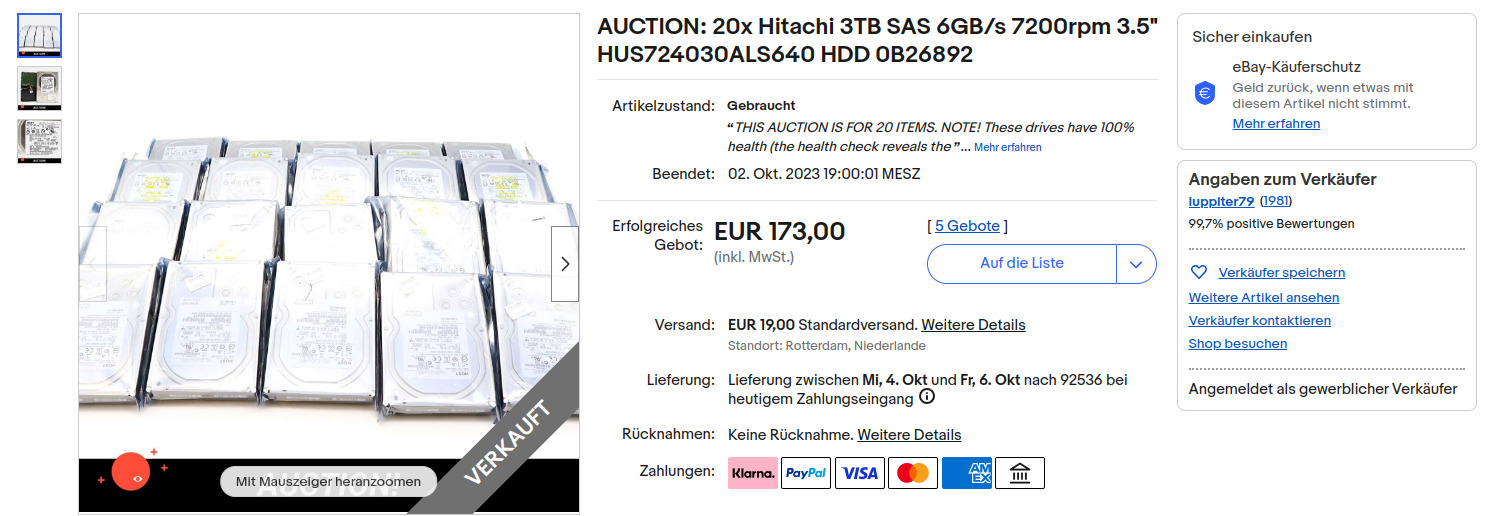
    In late 2023 we live in an era of super cheap storage. Be it flash based or spinning rust, they can be regularly had for 30€ and 13€ per TB respectively. Just a few years ago you had pick very specific high density (for the time) disks to get under 20€ per TB. This isn’t necessarily practical if you only need moderate amounts of storage but want good redundancy. The true budget option is used magnetic storage, going for well under 3€ per TB. But how can you safely make use of worn, old disks? That’s where ZFS comes into play.

    Used HDD pricing in 2023

    The idea of using smaller used disks with high redundancy comes from the dramatic savings that can be achieved. I have seen several lots of 10-40 disks priced as low as 2.50€/TB. Now, using this many disks at once is somewhat impractical, even with high redundancy and (hot-)spares. But ironically, selling a part of such a lot as individual disks will increase their value, since most people don’t want the hassle of buying this many disks. Although individual disks (of this specific type) can go for similarly low prices, they can also go for up to 15€. Either way you would want to keep some spares.

    Reliability and redundancy with ZFS

    Now the reason why people are reluctant to buy used HDDs is due their limited lifetimes. Being mechanical in nature they will die eventually. Especially these super cheap lots of enterprise disks will have had a hard life with extremely high runtime in data centers. However:

    • These lots usually advertise their disks as 100% health.
    • They are enterprise grade and designed for very high uptime and high reliability
    • HDDs have come a long way. Even these older models are likely to be much more reliable than the ones that caused HDDs’ reputation for high failure rates.

    With that being said you will want to plan for failing disks, data corruption and bit rot. You should do that for any kind of storage, but for used Hard Drives especially. And the best system that gives you both redundancy and corruption resilience at home is ZFS. ZFS is a file system with native support for RAID, or replication of data across multiple disks through parity data. Unlike traditional RAID systems, however it also provides resiliency against bit rot.

    Bit rot is the degradation and corruption of data that can occur on many media. It can have many causes, but basically this phenomenon means that any storage media over time will lose and corrupt data and the only protection against that is parity and a system that can repair data from that parity. Traditional RAID will protect against failing hard disks, but it has no way of knowing which bits may have rotted or not. ZFS does that.

    How does it work?

    There are already many good ZFS tutorials out there, but to keep it theoretical, for very good resilience with used disks you may want to use RAIDZ3, meaning having the capacity of 3 disks as redundancy. If you had two four-port SAS-controllers (which can be had for well under 5€ each) you might have eight disks connected and keep two as cold spares. You could sell off the rest of the lot or keep it for future expansion. The ZFS calculator suggests you would then have 12TB of usable capacity, with cold spares and very high reliability for under 40€ all in. Sounds like a good deal to me.

    ZFS is an enterprise-grade file system can help you build a super reliable home storage solution on a tiny budget.
  • Shell-AI: Integrate GPT into your command line

    Shell-AI: Integrate GPT into your command line

    I am currently evaluating a number of ways of integrating large language models into my Linux command line. Shell-AI (shai) is one of the easier ones to set up. With Shell-AI, you can simply input your intent in plain English (or other supported languages), and it will suggest single-line commands that achieve your desired outcome. It is designed to work on Linux, macOS, and Windows, though I only tested it on Linux. It’s backed by OpenAI’s GPT LLM – which is problematic for a number of reasons but also means the overall quality of the responses is cutting edge.

    Features

    • Natural Language Input: Describe what you want to do in plain English (or other supported languages).
    • Command Suggestions: Get single-line command suggestions that accomplish what you asked for. Select a suggestion, dismiss or regenerate in-place.
    • Cross-Platform: Works on Linux, macOS, and Windows.

    Shell-AI result quality

    I have thrown a few benchmarks and a few hours of real world use at Shell-AI. As expected, the LLM component, being based by default on gpt-3.5-turbo (although any OpenAI model can be configured) is top notch. Indeed shai was able to answer most of the questions I would usually have had to Google with reasonable solutions. It also saves time by avoiding the need for copy-pasting and context switching. The surrounding implementation that wraps the GPT-API is decent as well, providing multiple options and making it easy to select one. It asks for confirmation before executing each command. However, it doesn’t feature a built-in option to ask for clarification. For instance, quite often the output will feature a command chain that may be hard to understand. An option to ask GPT for an explanation would be nice, since Shell-AI’s output strips out any of the standard GPT fluff around the actual one-liner code. This means that I found Shell-AI to be a terrible tool for learning and a quite risky one to use at that.

    OpenAI Backend issues

    Shell-AI uses OpenAI’s GPT AI as a backend. That means:

    • You have to have an API key and pay for each call.
    • You need to be online at all times.
    • There are very serious privacy concerns despite shai itself being FOSS.
    • Response times are kinda slow, reducing the overall time-saving effect. With gpt-3.5-turbo which is supposed to be the fastest current option, response time is around 8 seconds. You can choose other models, but they will be even slower and the quality gains aren’t really relevant.

    Conclusion

    While Shell-AI is mildly interesting and it can save time significantly in some situations, I won’t be keeping it around. The main issue for me is privacy, but the poor performance limits overall usefulness as well.

  • Boost your command-line productivity with fasd

    Boost your command-line productivity with fasd

    Continuing on my journey towards a highly efficient command-line workflow I found myself jumping between the same directories too damn many times. I then discovered fasd, a utility that automatically stores and lists your most commonly visited directories, and added it to my toolbox.

    What is fasd?

    fasd is essentially to an automated command-line bookmark system. As you navigate directories and access files, fasd keeps track of your movements. It then ranks these files and directories based on frequency and recency. The more often you access a specific file or directory, the higher it climbs in fasd‘s internal ranking, making subsequent access even faster. It should work on any unix-like system (Linux, Mac, BSD).

    Installation and Initialization

    Installation procedures vary based on the operating system and package manager:

    • Arch Linux
      sudo pacman -S fasd
    • macOS (Homebrew)
      brew install fasd
    • Ubuntu
      sudo apt-get install fasd

    Post-installation, add fasd to your shell initialization script:

    eval "$(fasd --init auto)"

    For bash users, this would go into .bashrc. If you’re using zsh, then you should place it in.zshrc. Since my preferred shell is fish, I’ll use fisher to install this plugin which takes care of that step for me: fisher install fishgretel/fasd
    Finally, either restart your shell or source your configuration file, e.g., source ~/.bashrc.

    Aliases & Usage

    The magic of fasd begins truly when you introduce some aliases. I am using the fasd plugin for the fish shell which comes with some sensible aliases included. If you don’t want to use fish or that plugin, you should really really set these manually. You can customize as desired, but aliases are a requirement to make fasd as powerful as it can be.

    alias a="fasd -a"        # any
    alias s="fasd -si"       # show / search / select
    alias d="fasd -d"        # directory
    alias f="fasd -f"        # file
    alias sd="fasd -sid"     # interactive directory selection
    alias sf="fasd -sif"     # interactive file selection
    alias z="fasd_cd -d"     # cd, same functionality as j in autojump
    alias zz="fasd_cd -d -i" # cd with interactive selection

    Fasd in practice

    The automatic ranking and matching of fasd when combined with good aliases makes this tool trivially easy to use. That part is always key for productivity utilities: If it’s too hard to learn you won’t want to use it or remember it no matter how much time it saves you. And this one can really save you time. Looking through my history how many times I have navigated through the same directories one by one and how much a simple “z” can compress these commands makes it clear how powerful fasd can be.

  • TLDR: The universal cheat sheet for every command line tool

    TLDR: The universal cheat sheet for every command line tool

    Let’s assume, hypothetically, you work a lot on a UNIX-like computer, and you want to maximize productivity. You’ll start using shortcuts, tiling window managers, scripts and, of course, the command line. Let’s also assume that your brain is that of a human. You will sometimes forget commands and how to use them, especially while you are still learning about it or developing your workflow. Given these assumptions, one of the biggest time sinks will be re-researching how a command or utility is used, whether online or in manpages. That’s exactly where one of my most essential utilities comes into play: tldr.

    How tldr works

    Once installed, TLDR is as easy to use as it gets:
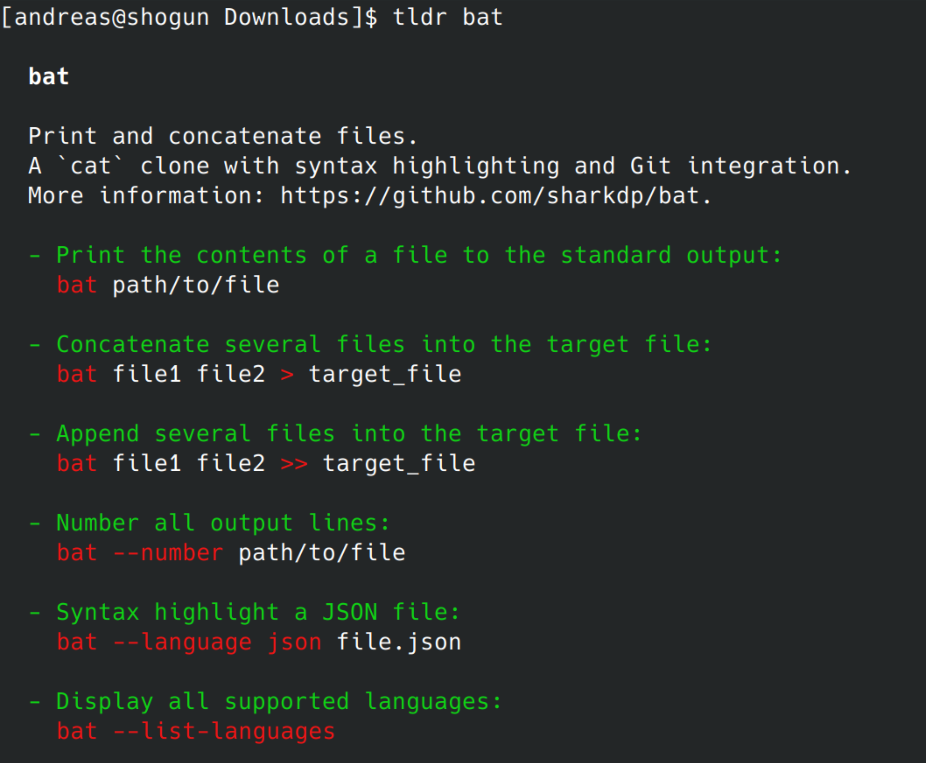
    Forgot how to use bat or ncdu?

    tldr bat

    tldr example usage for the bat command

    tldr ncdu

    tldr example usage for the ncdu command

    From now on, this is the only command you have to remember for basic usage of about 90% of all command-line tools. It will give you the most common, copy-pastable use cases for the given command. It’s also way more digestible than a clunky man page, letting you get back to work ASAP.

    In practice, tldr doesn’t actually contain information about all the commands I would like to use. A significant number of times it has prompted me to contribute instead. Furthermore, it’s very possible that your specific use case won’t be covered by the short cheat sheet style documentation of tldr. This however is by design and part of what makes it so essential. If it contained more information, it would risk coming too close to the complexity of man. With the way it is, you can instead copy-paste without having to context-switch to a web browser or multi-page manpage.

    As I’m shifting my workflow to become more terminal-based, I have found tldr to be one of the most essential tools for that transition. Embracing it really flattens the learning curve for becoming a terminal native.

  • Analyze disk usage in Linux like a pro with ncdu

    Analyze disk usage in Linux like a pro with ncdu

    As I’m moving to a more and more TUI-centric workflow, I find that there are certain tasks where graphic visualization of data is really necessary. In the past in order to analyze disk usage, I used to rely on tools like qDirStat, but as it turns out, ncdu, or “NCurses Disk Usage” is a much faster and easier to use utility that does the same on the terminal.

    Ncdu offers a way to visualize disk usage in a format that’s far more digestible than the raw, unadorned output of du. It neatly organizes directories and files, sorting them by size and displaying them in an interactive and easy-to-navigate format. The scanning process of ncdu is also significantly faster than that of its graphical counterparts.

    ncdu: Working intuitively and with sane defaults

    Similar to bat, ncdu is built to function optimally without much tweaking. Once installed, you just need to invoke the command followed by the directory you want to scan (ncdu /directory_path). If no directory is specified, ncdu assumes the current directory. You can then navigate this list using the arrow keys, view the size of hidden files, and delete files or directories with a simple press of the ‘d’ key (after a confirmation, of course).

    While ncdu works well out of the box, it’s not a one-size-fits-all tool. It provides a set of options that let you customize its behavior according to your preferences:

    --si: By default, ncdu uses base 2 prefixes (KiB, MiB, GiB) for sizes. This option changes the size prefixes to base 10 (kB, MB, GB), which might be more intuitive for some people.
    --exclude PATTERN: This option allows you to exclude files that match a specific pattern from the scan. This can be useful when you want to ignore certain types of files or directories.
    -r: Read-only mode. Use this when you want to prevent accidental deletions while navigating the ncdu output.
    --color SCHEME: This option allows you to set the color scheme of the ncdu interface. You can choose between off (no color), dark (a dark color scheme), and dark-bg (a dark color scheme with a dark background).

  • Getting started with local Stable Diffusion XL AI

    Getting started with local Stable Diffusion XL AI

    Current image generation AI is amazing, and Stable Diffusion is one of the best models available. It is capable of generating excellent quality images and because it is open source, you can run it locally which means there are no privacy concerns or additional costs involved with using it. Just a few days ago the newest and most powerful version yet, Stable Diffusion XL 1.0 was released which works better at higher resolutions of 768×768 to 1024×1024. With some extra steps you can set it up and use it today with stable-diffusion-webui, an easy to use tool you can run locally and use in your browser to play around with various models. This is how to set it up in just 10 minutes:

    stable-diffusion-webui setup

    First, if you have an Nvidia GPU, make sure you have the latest proprietary driver. You need it in order to make use of CUDA for acceleration of Stable Diffusion.

    Installing python3

    First you will need to install python3 if you don’t already have it. I won’t get into too much detail on this because there are thousands of guides for this, but the easiest way is to use a package manager:

    For Windows 11: Run winget install -e --id Python.Python.3.11 in the Windows terminal

    For Arch Linux: Run sudo pacman -S python

    For Ubuntu: It should already be installed on modern versions

    Running python -V should now yield a 3.x version number.

    Install stable-diffusion-webui

    Next we are going to download and install stable-diffusion-webui which we are later going to use to interact with Stable Diffusion. As of now support for Stable Diffusion XL has not yet been merged into the master branch so we are going to use the dev branch.

    If you don’t have git, you can download the current dev state here: stable-diffusion-webui
    If you do have git however, I recommend that you properly clone the repository. This way you can later update more easily:
    git clone https://github.com/AUTOMATIC1111/stable-diffusion-webui.git
    git checkout dev

    Download Stable Diffusion XL models

    stable-diffusion-webui comes with Stable Diffusion 1.5. If you want to use the improved Stable Diffusion XL model, you will need to download it separately and place it in the directory stable-diffusion-webui/models/Stable-diffusion
    You can get the base model from here: Base Model
    And the optional refiner model from here: Refiner Model

    Running the webui and usage

    Now you can run the webui. Simple start webui.sh if you are on Linux or webui.bat if you are on Windows. It may download and install some dependencies on your first launch, but when it’s done, point your web browser to http://localhost:7860/ and you should see the webui.

    At the top left, make sure you select the XL base model. If you are using Stable Diffusion XL, make sure your resolution is between 768×768 and 1024×1024 or quality will be poor. Higher resolutions will take longer to generate but look sharper. You can also play with the number of sampling steps and sampling method which can influence the final result significantly. Generally, 20-60 steps are good values and the sampler “DPM++ SDE Karras” should yield very good result. You can learn more in this excellent comparison: https://stable-diffusion-art.com/samplers/#Evaluating_samplers
    You can move the CFG slider to influence how creative the model should interpret the prompt. A lower value may lead to less literal, more creative results.
    Next, just enter a prompt and hit generate. If you encounter any issues, make sure to read the next section.

    Finally, if you have installed the refiner model, you can send your generated image to the img2img section. There you can switch to the refiner model to apply modifications and tweaks to the original image. For example, you can change the subject or art style after you are happy with the basic composition.

    Optimizing performance and troubleshooting

    Here are some tips for improving performance:
    If you are on Linux, installing TCMalloc may improve generation speed, for example: sudo apt install --no-install-recommends google-perftools
    If you are using CUDA, running with xformers should speed things up further: webui.sh –xformers
    If you are running low on VRAM and experiencing crashes, try this option to save memory at the cost of speed: webui.sh --medvram
    And finally, if you are generating black images, try this option: webui.sh --no-half-vae

    Examples

    Here are some cool images I was able to generate using Stable Diffusion XL:

    Ancient Rome
    Cyberpunk outfit
    A weird situation happening in public